Laser Vector Projector
Vector graphics using fast mirrors, on the cheap!
by Brooke Chalmers and Mia Kiesman
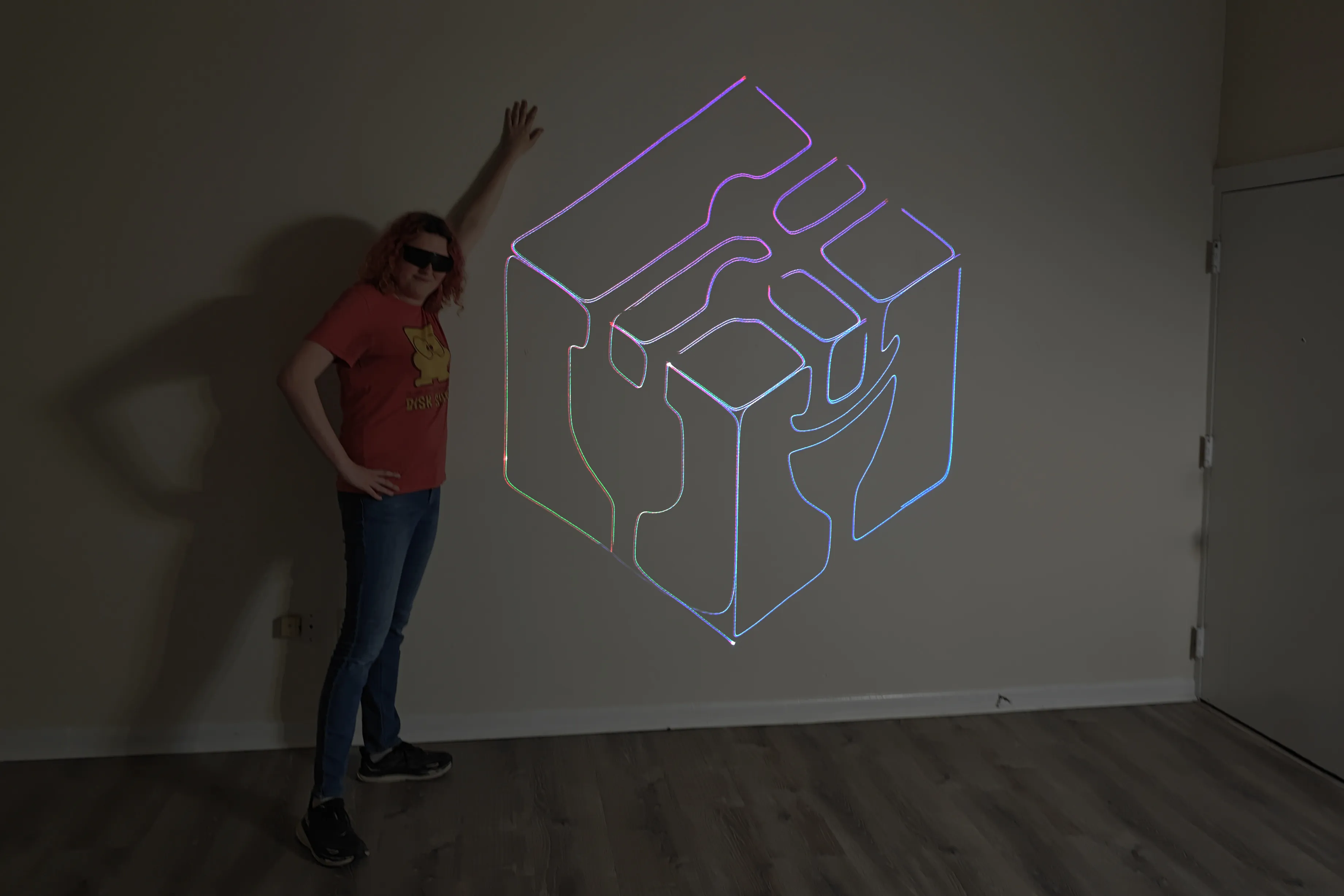
My girlfriend Mia and I built an RGB laser projector that uses a pair of galvanometers to direct the beam. Firmware running on an ESP32 can project a variety of vector graphics demos, Wii Nunchucks can be connected for interactive games, and a 3.5mm audio input allows using the projector as a music visualizer.
Sponsored by PCBWay
This article is sponsored by PCBWay, who generously provided PCB fabrication services for this project. PCBWay provides high-quality boards with fast turnaround at low cost, and are a great option for both hobbyists and professionals.
#Galvanometers 101
Projection is a useful technique for displaying large images: instead of having to manufacture larger and larger displays, an image can be generated at any size, then expanded using optics to be shown on any surface available. The only limiting factor of size (up to a point) is the brightness of the light generating the image. Lasers are a great way to generate a lot of light in a small volume, so they are often used in projection applications. However, unless you want to just watch a static spot on the wall, it needs to be controlled.
One way (simpler in theory, harder in practice) is to use a digital micromirror device (DMD) — a MEMS device made up of a grid of tiny mirrors that flip between two states. DMDs are effectively synonymous with DLP (Digital Light Processing), the Texas Instruments product line which holds a monopoly on this category of device. DMDs are generally difficult and expensive to acquire for hobbyist use, except through buying and disassembling commercially available video projectors — but these integrated systems limit a tinkerer’s level of control over the DMD chip. DMDs are also difficult to illuminate and inefficient at displaying “sparse” images.
Another way is to quickly steer the beam to trace out the ideal shape. While moving the laser diode itself is tricky, moving mirrors to steer the beam can be done extremely fast. Laser projectors use a pair of mirrors mounted on galvanometers (or “galvos” for short). Unlike conventional types of motors, these use the same mechanism as you’d find in an analog voltmeter to deflect the mirror in response to a current. They can’t move much mass, but they can respond very quickly to changes in input, making them perfect for this type of beam steering application.
While a DMD allows you to draw raster images, galvos draw vector images — enabling a lot of fun applications that aren’t possible on typical consumer displays. Vector displays excel at creating sharp, smooth lines and polygons at any angle, however they are rarely used now due to raster being more practical for most applications. Ahoy’s A Brief History of Graphics has a section on vector graphics with renderings and examples which showcase this excellently.
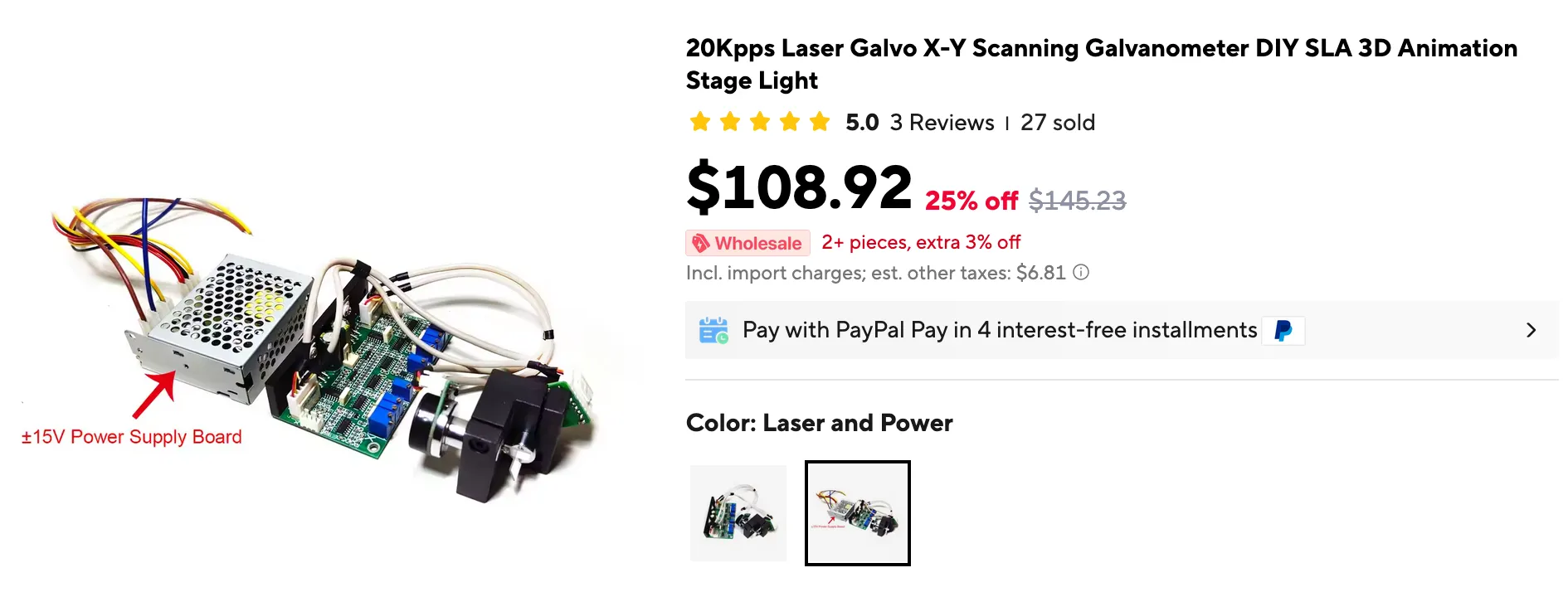
The X/Y galvo setup I bought came with two galvos, the X/Y bracket which connects them, a driver board, and a split-rail power supply. It takes in ±10V differential analog signals for X and Y position (likely corresponding to a standard set by ILDA, the International Laser Display Association).
Galvos for laser applications are often rated in “Kpps”, or “kilo-points per second,” which refers to the rate at which the galvos can display the ILDA standard test pattern at 8 degrees of deflection. My galvos are rated for 20 Kpps, which is on the slower side. Note that some manufacturers often lie about this measurement given its imprecise nature.
#Red, green, and blue lasers
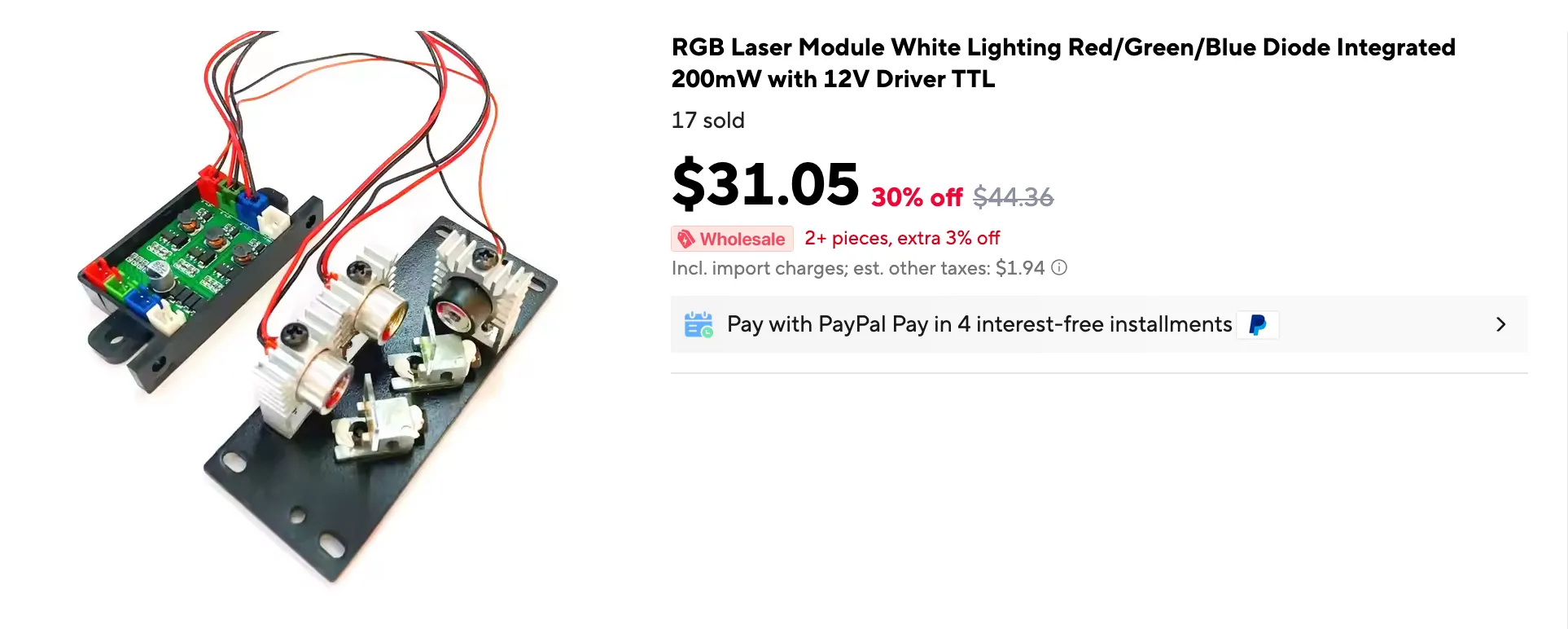
Lasers come in a variety of wavelengths dependent on the lasing medium. Some wavelengths are dramatically easier to make than others. Thankfully, lasers in the red, green, and blue ranges are pretty straightforward. Modules like the one I purchased combine three wavelengths with dichroic mirrors — filters that act like a mirror to some wavelengths, but transmit others through — to form a single beam.
Safety: Don't do this at home
Lasers are dangerous tools, and this isn’t the type of project you should attempt without a clear understanding of the risks. But since I know that might not stop you, here’s the very basics of what you need to know to mess around with this stuff safely.
Lasers are divided into classes, where a higher class number means higher risks. Here’s a table summarizing the classes for visible light lasers — infrared or ultraviolet lasers bring additional risks of unintentional long-duration exposure as the beam can’t be seen.
| Class | Power | Risks | Examples |
|---|---|---|---|
| I | <0.39 mW | Viewing through optical instruments | CD players |
| II | <1 mW | Staring directly into beam | Barcode readers, laser tag |
| IIIa | <5 mW | Briefly looking into beam | Laser pointers |
| IIIb | <500 mW | Eye or skin exposure to beam or specular reflections | Laser shows, industrial, research |
| IV | >500 mW | Eye or skin exposure to beam or diffuse reflections | Laser shows, industrial, research, medical |
sources: lasersafetyfacts.com and fda.gov
Note that lasers bought from sketchy vendors are often mislabeled! This especially applies to laser pointers, which are required to be at most class IIIa. Several laser pointers I have purchased had “<5mW” printed on the outside but measured closer to 50 mW, well into class IIIb territory.
Most laser safety regulations for visible lasers are based around a 0.25 second exposure time, with the rationale being that the human blink reflex would protect you from exposures longer than that time. Therefore, if a laser is categorized as dangerous for eye exposure, it means that it can cause permanent damage faster than you can blink.
I work with very high power lasers at my day job and thus am familiar with the controls that a professional lab uses to ensure laser safety. I would not have had the confidence to attempt this project without that experience.
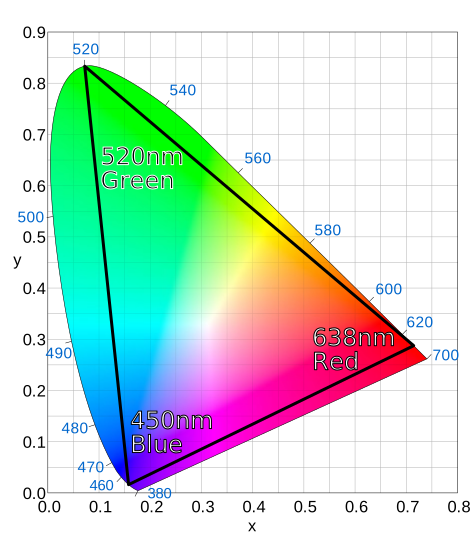
One of the perks of working in perceptual color is, since human eyes have three types of color sensing cells, you only ever need three wavelengths. Red lasers are commonly found at the 638nm wavelength, so that one’s easy. There are lot of available blue wavelengths between about 440 and 460nm to choose from. Green is where it gets difficult.
By far the most common green light wavelength is 532nm — it can be created easily by taking an infrared laser at 1064nm and passing its light through a frequency-doubling crystal to produce 532nm. However, this process is imperfect and cheap green lasers often lack the filtering required at the infrared wavelengths, creating a potential hazard if the user is not expecting to need protection against 1064nm light. For lower-power applications like this project, 520nm diodes have started to become available which directly produce light at the desired wavelength. And as another benefit, 520nm diodes help give you a larger color gamut! By mixing various amounts of red, green, and blue at those selected wavelengths, you can create any color in the triangle below.
Original source: Wikimedia Commons

While I certainly can’t mention everything you should know regarding safety, one interesting note that ties closely into wavelength selection is laser safety goggles. Laser safety goggles have the difficult job of letting through enough ambient light for you to work while only letting through a tiny fraction of the light at the wavelength of your laser.
As such, you must choose goggles which match the wavelengths you are using, and there are hundreds of different options for different applications.
A lot of the aspects of this project revolved around buying parts as cheaply as possible to demonstrate how accessible experimenting with lasers is. Do not attempt to apply this mentality to safety equipment. By far the most expensive part of this project was purchasing laser safety goggles from a reputable, CE certified, ANSI-compliant vendor.
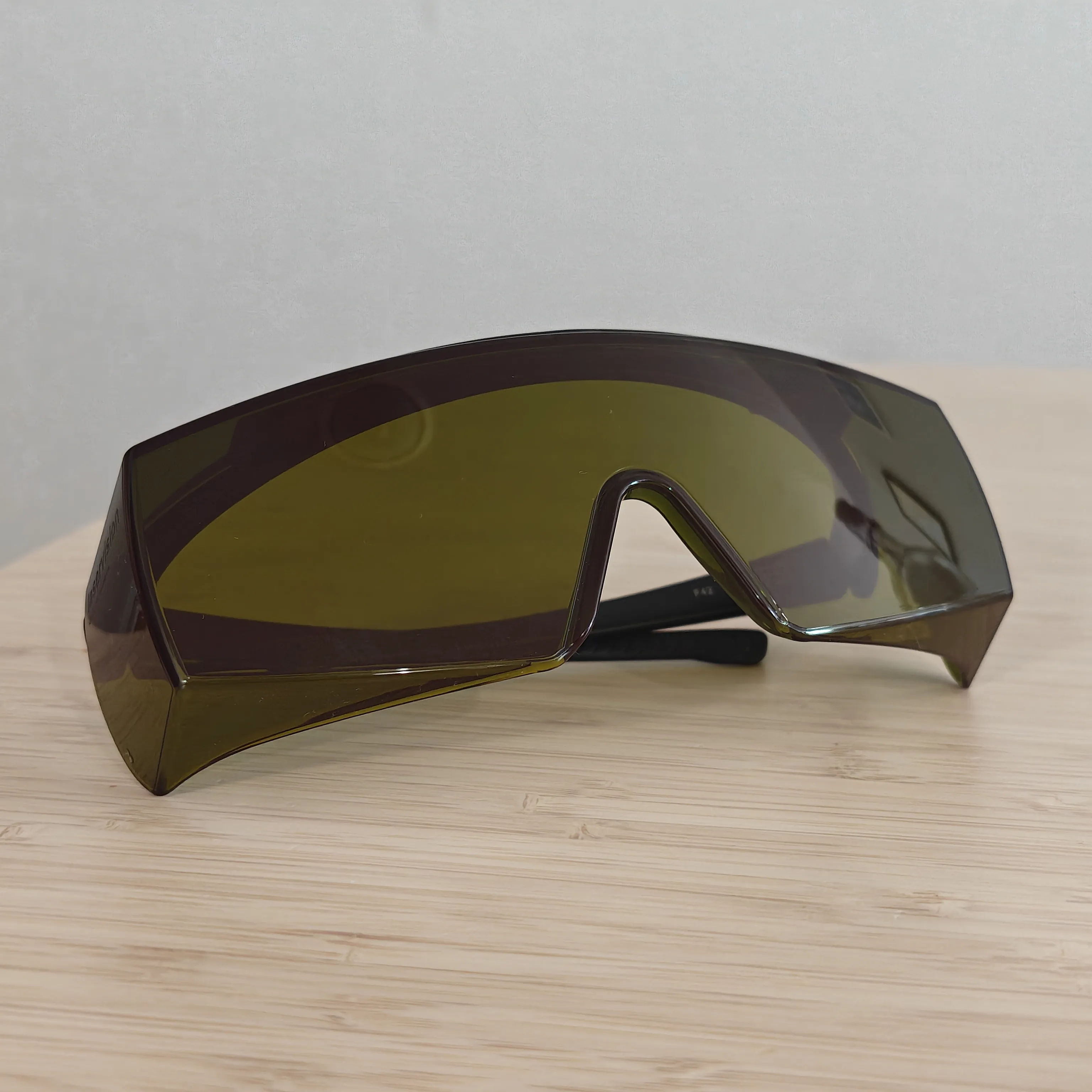
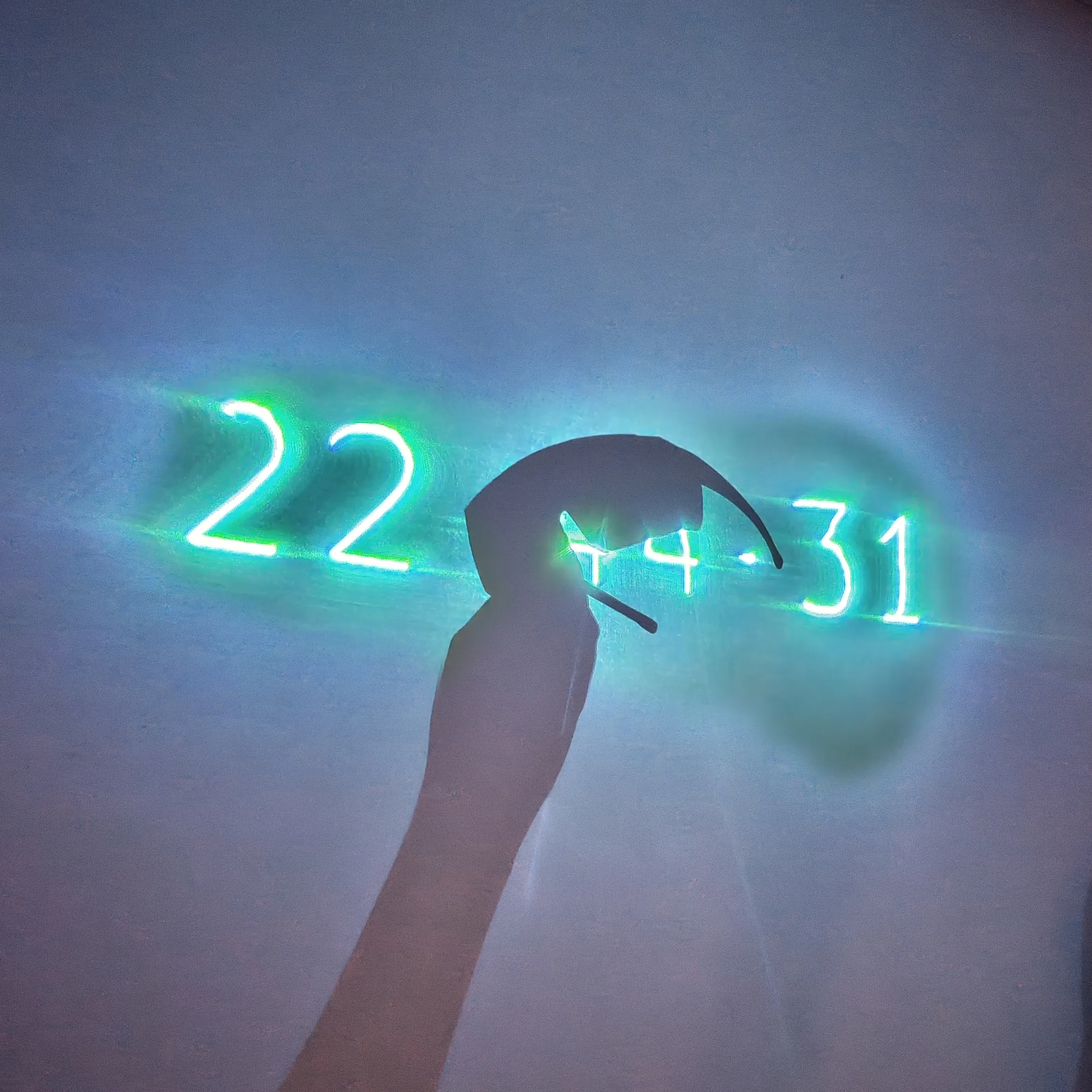
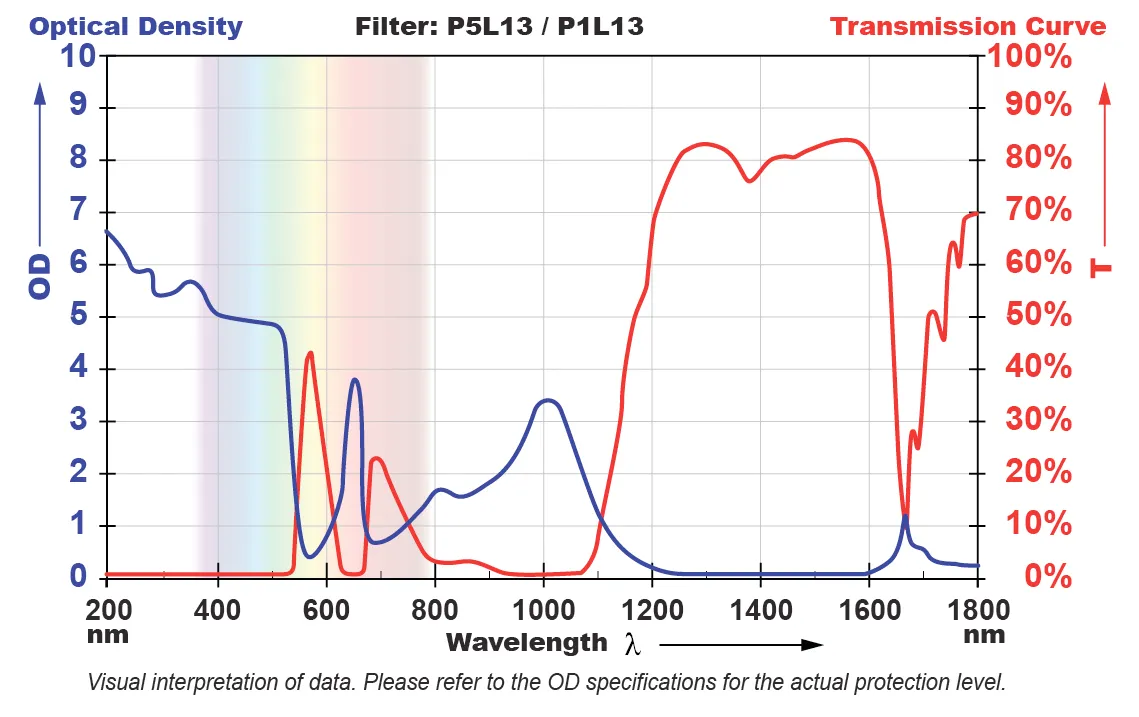
The two numbers to look at are OD (Optical Density) at your desired wavelengths, and VLT (Visible Light Transmission) overall. You want a high enough OD to block harmful laser light, but a high enough VLT to allow you to see your surroundings comfortably. I got the F42.P5L13.5000 from Laservision as they are rated for about OD 3 (allowing through only of light) at each of the wavelengths in my laser module while having 20% VLT (allowing through 20% of all visible light).
#Initial prototyping
To paint vector art, two things are essential: precise control over the beam position, and precise control of the beam brightness/color.
To control the beam position, we need a DAC to generate the analog signals corresponding to mirror positions. Although DACs are relatively common in industry, they are unfortunately absent from many hobbyist boards. The ATSAMD line common in MicroPython-focused boards has only a single DAC output. STM32s often have two DACs, but they aren’t as common on development boards outside of the Nucleo line (which are physically quite large), and the LQFP packages they come in are difficult enough to hand-solder that I would be wary of using a bare chip.
Two variants of the ESP32 chip, however, do support DACs: the original ESP32 and the ESP32-S2 both have two 8-bit DAC outputs. 8 bit outputs essentially give a 256x256 grid for outputs, which is quite small by professional standards but still pretty good for this project. Additionally, the galvos themselves have some inertia, which has a smoothing effect on diagonal lines and hides the “stair step” phenomena in the output. I chose the ESP32-S2 as it was the newer chip, although it does not support Bluetooth.
I chose the ESP32-S2 for this project because it has a built-in dual-channel DAC output. Having a DAC integrated into the microcontroller is useful not just to reduce complexity, but also to ensure the DAC can output samples quickly enough to move the beam at the desired rate. (If the galvos are rated for 20 Kpps, then the DAC should have at least a 20 kHz output rate!)
Once the beam position is set, the next step is to control the brightness of each laser to produce arbitrary colors. While our laser controller only accepts a digital input to turn the beam on and off, we can still get a dimmable brightness effect using pulse width modulation — output pulses at a fixed, very fast rate, and adjust the width of each pulse proportionally to the desired brightness.
Unlike most microcontrollers, the ESP32 has two built-in PWM peripherals: the “LED Controller” and the “Motor Control Pulse Width Modulator” (MCPWM).
The LED Controller is designed primarily to drive LEDs with PWM signals. As such, it lacks a lot of the features one might expect (the output frequency is fixed, for instance), but gains other abilities: the peripheral can automatically ramp between colors smoothly without involvement from the CPU. This is the peripheral I’m using for this project.
The MCPWM gives additional options for timers, interrupts, and synchronizing with external systems — features that aren’t needed for this project.
You might wonder why we can’t use PWM to steer the galvos, avoiding the need for a DAC altogether. However, unless the PWM frequency is extremely high, the galvo mirror would end up oscillating between the two extremes of its travel as the pulses switch between on and off instead of remaining steady at the desired position. The laser diodes have a longer response time, and they only need to do color changes on a longer timescale, like drawing a slow-changing gradient or changing the beam color in between drawing line segments.
After choosing the microcontroller, I bought some breakout boards for prototyping. I started off using the QT Py ESP32, but Adafruit inexplicably decided not to break out the hardware UART pins on the chip, and the Rust toolchain for the ESP32-S2 doesn’t support panic traces or debug logs over the chip’s native USB, so I quickly switched to the TinyS2.
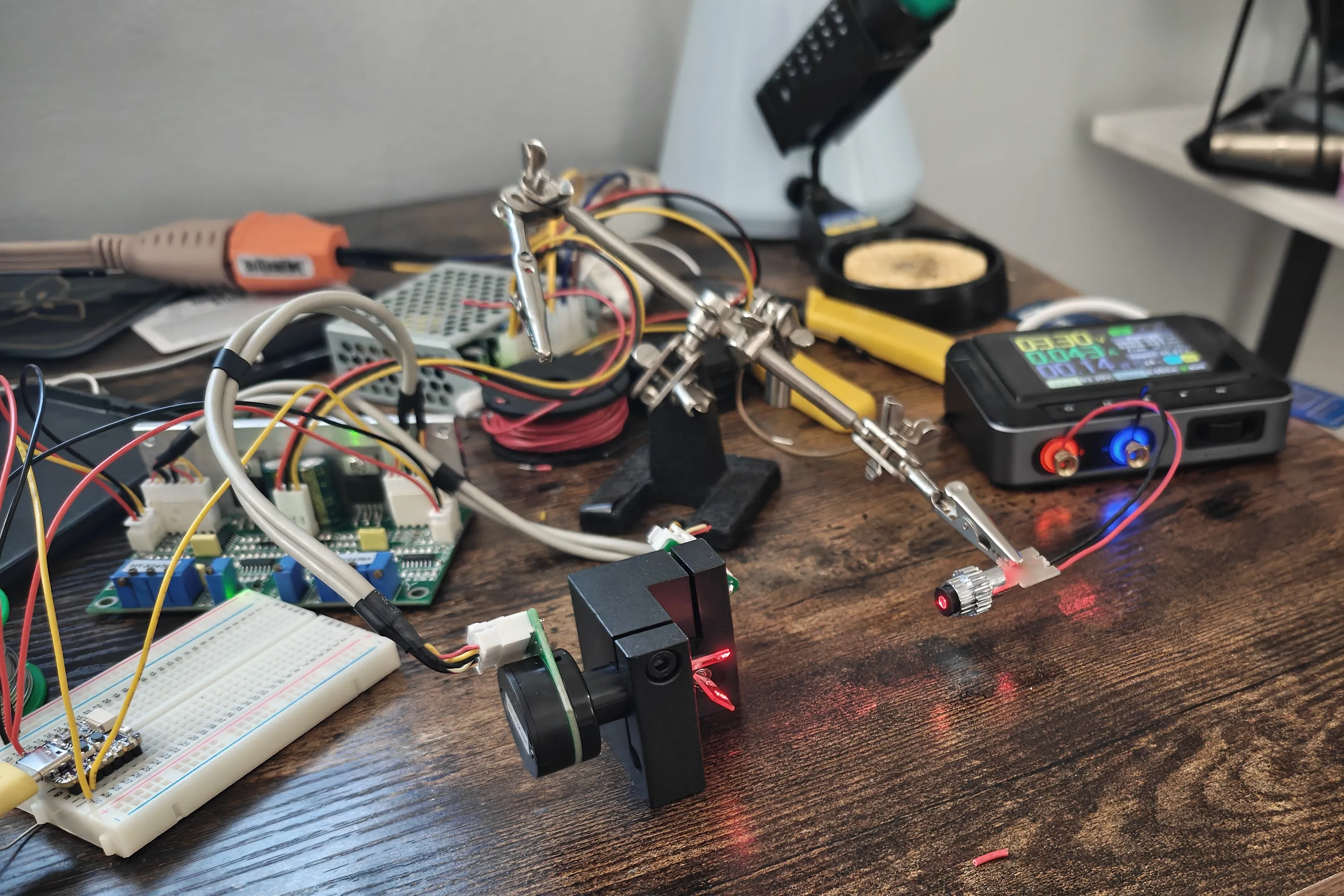
The prototype setup certainly wasn’t polished, but it was a great way for me to validate the overall design.
#Schematic and PCB Design
With the components vaguely in place, it was time to develop a PCB to organize and contain them all. I enlisted my lovely girlfriend Mia, who is much more knowledgeable about this stuff than me, to help me with both the schematic and the board layout. This was my first time attempting a schematic of this complexity! Overall I’m quite happy with how much worked right away.
After designing the board in KiCAD, I sent it to PCBWay to be manufactured. PCBWay provides a KiCAD plugin which automates the process of sending your board layout from KiCAD into their service. Gone are the days of fussing around with Gerber file export settings or realizing you forgot to attach a drill file! At time of writing, part of the cost of your order will be donated to the KiCAD project to support future development.
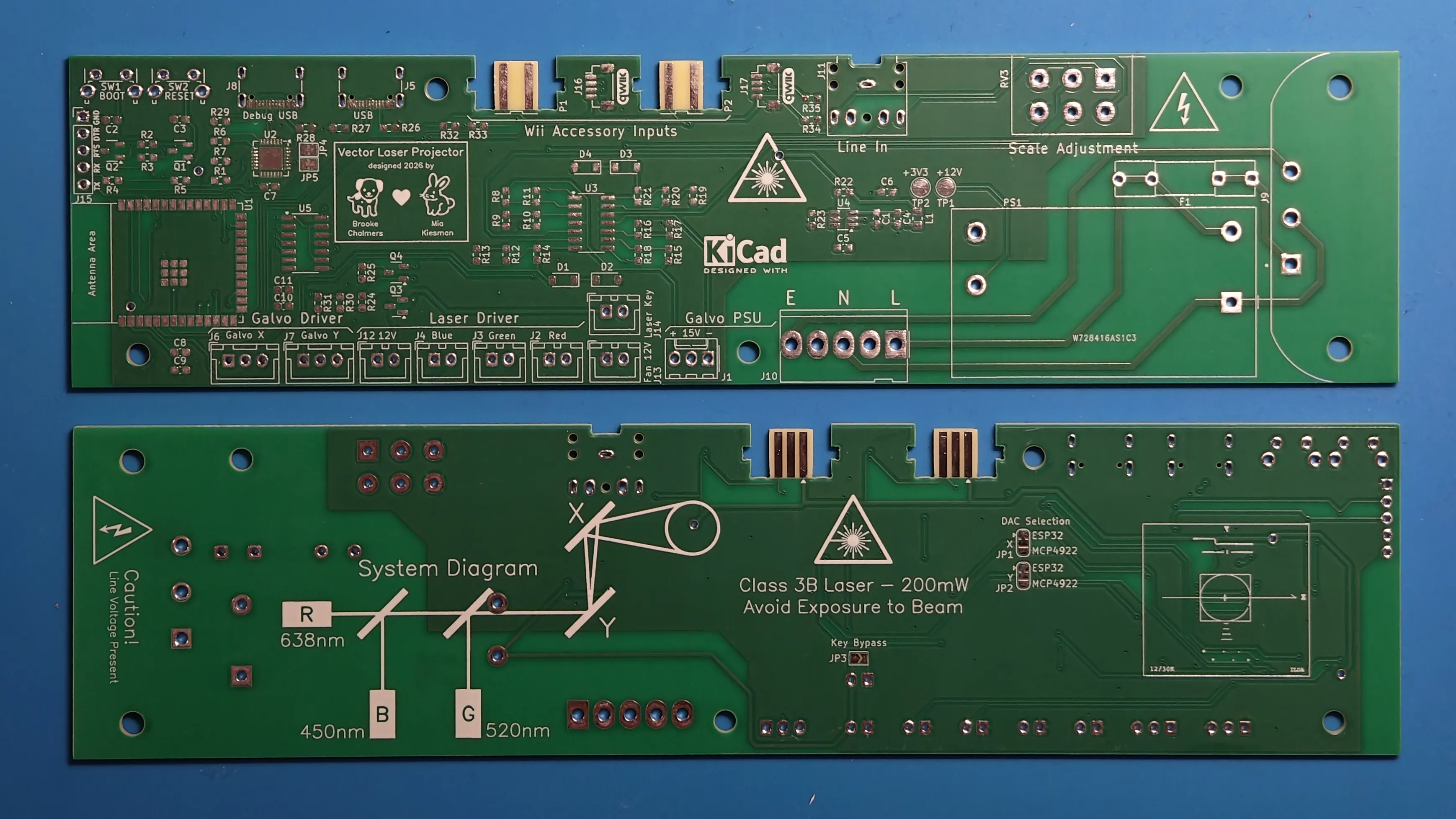
The boards for this project arrived quickly andy well-packaged with no defects and high-quality silkscreen printing. While I chose a standard thickness and silkscreen color for this project, PCBWay offers many more customization options often at minimal additional cost.
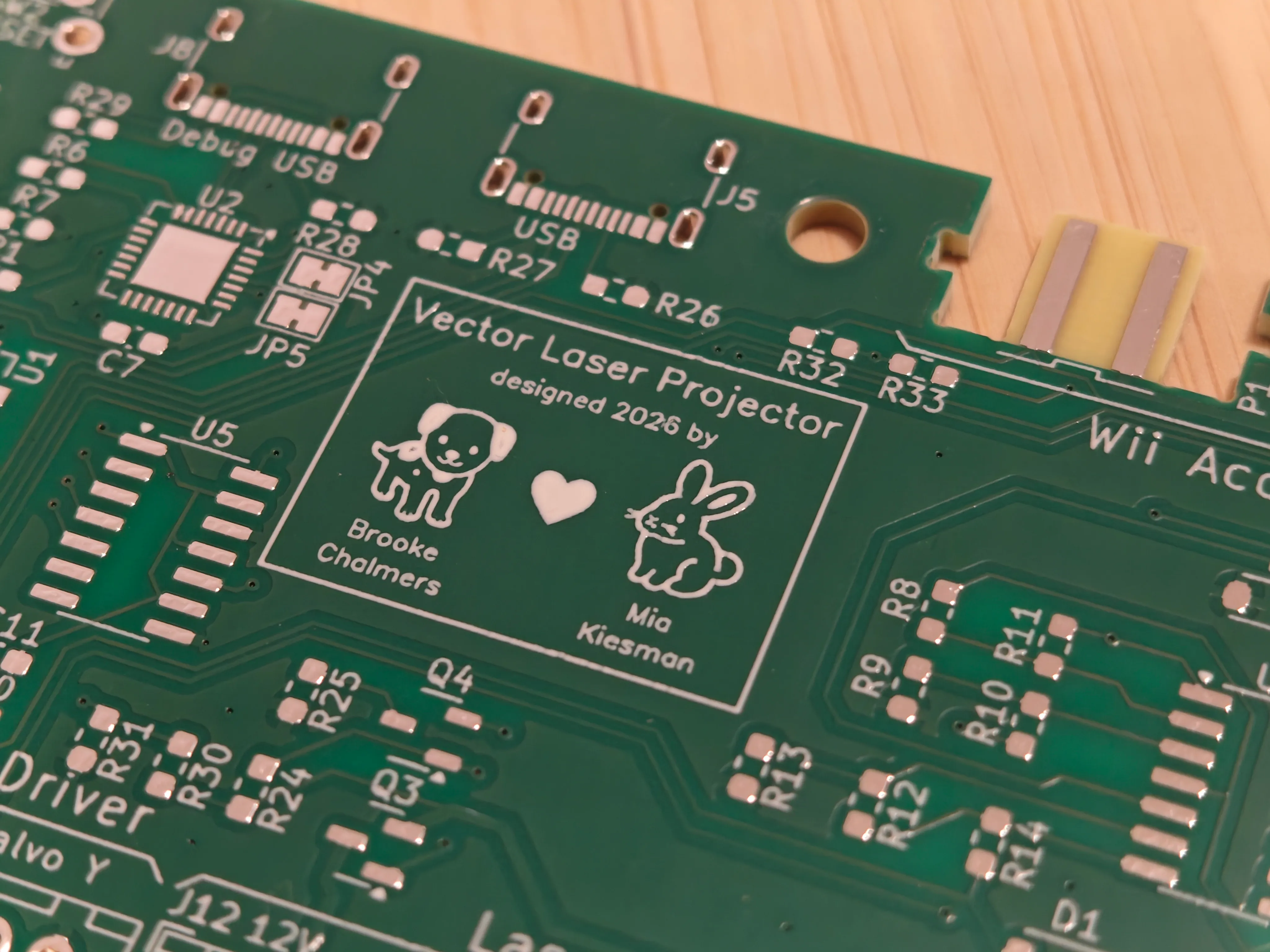
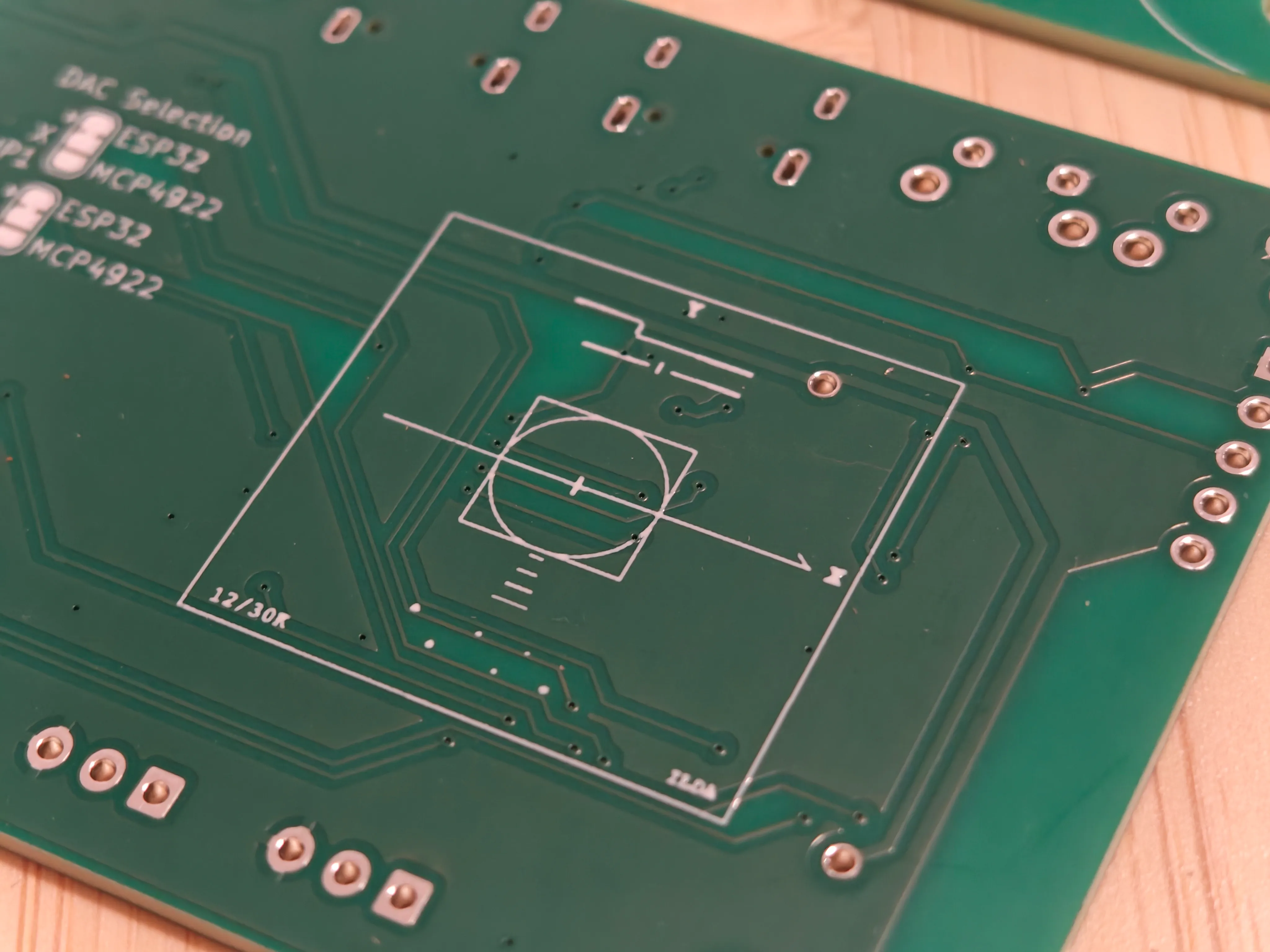
Of course, I took the opportunity to put some fun graphics and text on the board, including a reproduction of the famous ILDA test pattern. Everything looks impressively sharp and consistent across all of the boards I received. I wrote our names in text only 0.75mm tall, and despite KiCAD DRC warning me about the letter height, it came out looking perfectly legible.
The full schematic is in the GitHub repo, but I’ll highlight some of the most interesting parts:
#Power Regulation
This project needs a few different voltage rails to function:
- +12V for the laser diodes
- ±15V for the galvo driver board
- +3.3V for the ESP32
I managed to get away with not having a 5V rail for this project which was nice, and the galvos I bought came with a power supply to step down 120/240V AC to the ±15V rails. I decided to have line voltage enter the system through an IEC connector on the PCB so that it can be routed internally to both this off-board ±15V supply and regulated down to 12V on the board. This was my first time routing AC voltage on a board, and I’m sure the trace spacing, etc. is far higher than it needs to be, but it seems to work great! The one important thing I learned was to avoid having the ground plane get too close to the AC traces to reduce interference. That, and the habit of grabbing a board by the connectors while it’s on is not advisable when said connectors have 120V present.
To step down to +12V, I wanted an on-board solution to reduce the number of components in the project. We made use of an Mean Well IRM series module, which has a simple 4-pin footprint and completely solved the 12V rail problem. While it takes up some space on the board, it’s still more compact than most off-board options would be and requires no additional wiring.
Finally, we needed to step 12V down to 3.3V. Most examples of this in schematics I found online use the AMS1117 linear regulator or its clones, but I also found countless Reddit comments arguing that the AMS1117 is a bad choice because it’s inefficient compared to modern switching regulators. I ended up using TI Webench Power Designer to come up with a design and directly copied the schematic into my board. The design uses the TPS561201 which is a switching regulator large enough to hand-solder that doesn’t require many external components and has reasonably good efficiency.
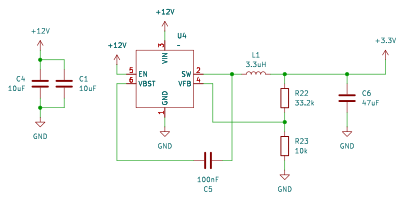
One thing to note about switching regulators is that the layout of passive components around them on the PCB is important to improve output quality. I was able to copy the example given in the chip datasheet and achieve good results.
#Microcontroller
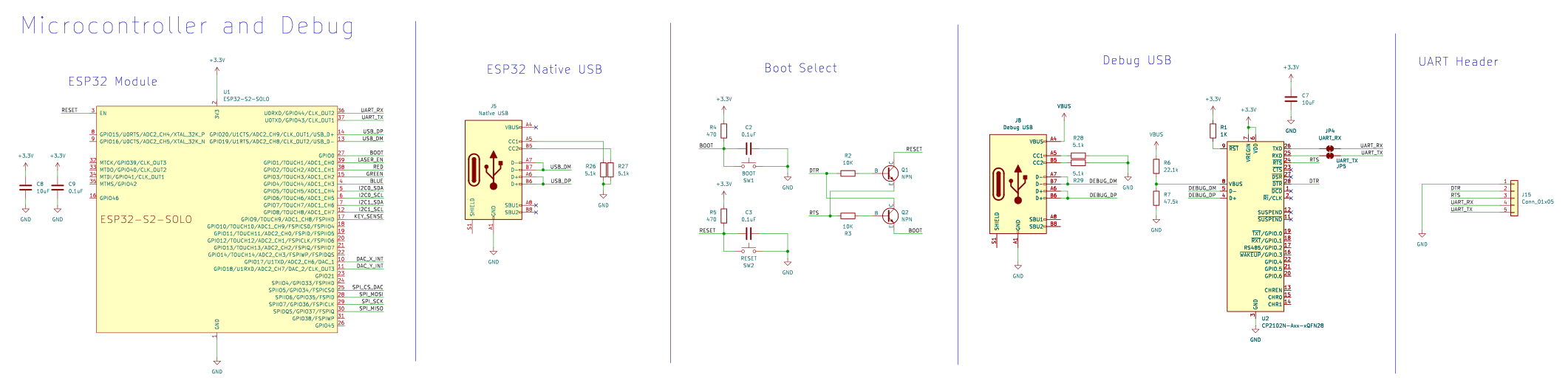
The project is built around an ESP32 module, since I did not want to have to design my own antenna around the chip and we had enough space to spare.
The ESP32 has a native USB port which I wanted to potentially use to control the device from a computer. While it is possible to upload code over the native USB port, the development experience is far from optimal for two reasons:
- Logging and panic handlers in Rust only output to the chip’s UART pins
- Uploading code requires performing a particular sequence to the BOOT and RESET pins which can’t be done over the native USB
Thus, I tried to copy the schematic found in most first-party ESP32 devboards: adding a USB to UART chip and using two transistors to implement BOOT and RESET pins via the serial DTR and RTS signals.
Based on my previous experience hand-soldering a surface mount USB-C connector for my recent LED matrix sign project, I decided to try using USB-C connectors for both the native and debug USB ports on this board, too. What I failed to consider was that the 6-pin power-only connectors on the LED matrix had a tight-but-workable 1.2mm pitch, but the 16-pin connector I had to use to carry data signals had a tiny 0.5mm pitch. My skills and equipment were not up to the task.
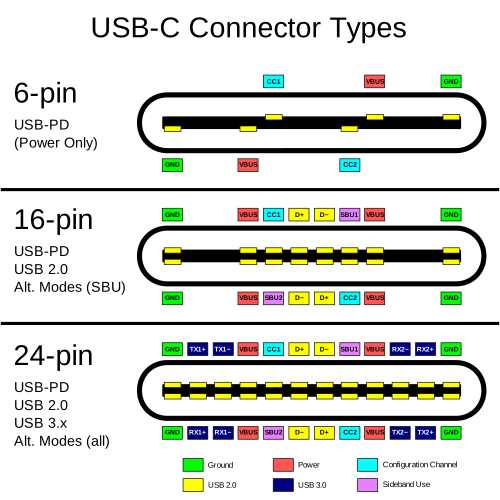
Soldering a power-only USB-C connector is far easier than one supporting USB 2.0. Based on a diagram on Wikimedia Commons.

I looked into getting an FTDI chip but it seems like there’s a substantial shortage right now — the FT232RNL was out of stock on DigiKey at the time I designed the board, and is still out of stock months later at the time of writing. Most boards I found used the CP2102N chip instead. It only comes in a tiny 24-QFN (“quad flat no-lead”) package with 0.5mm spacing between pins. I figured it would be easy enough to hand-solder, but missed the fact that the only ground pin on the chip is located on the underside.
I ended up using a heat gun and lots of flux to get the chip into place, then using my soldering iron and a drag technique for the pins around the outside. It eventually did seem to work, but I might have burnt a small spot on the dining room table in the process…
When designing, I added a header to manually hook up UART signals and physical buttons for the BOOT and RESET signals as a backup since I knew this would be the hardest part of the board to assemble, and I’m thankful I did!
#Galvo Signal Handling
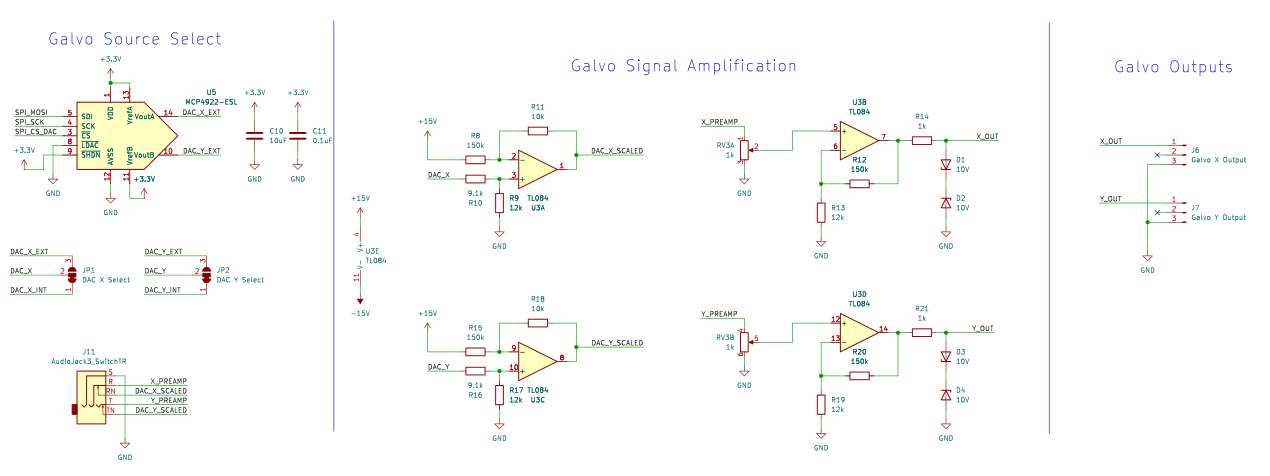
The galvos take a pair of analog signals (one for X and one for Y) as their input. The board we made supports three possible sources for these:
- The ESP32’s two DAC output pins (8-bit)
- An external SPI-based MCP4922 DAC (12-bit)
- A 3.5mm audio input source, so you can (for instance) play oscilloscope music from a laptop
I included a footprint for the external DAC in case it seemed like we were overly limited by the resolution of the ESP32 DAC, but so far that hasn’t been the case yet! The “smoothing” effect created by the inertia of each galvo definitely helps reduce the stair-stepping that would otherwise occur with 8-bit output. The simulator looks super blocky, but in real life everything looks nice and smooth.
Selection between the active DAC and the external audio input is handled using the presence detection pins of the 3.5mm input jack. We found a part that has two separate pins for detection, allowing us to easily swap in the DAC signal when no cable is present without any other components.
The harder part is amplifying the galvo signal. The galvo board takes in a differential signal for each axis, where the relative voltage between the two input wires is measured to reduce electromagnetic interference. We needed to take a 0-3.3V input and convert it to a differential signal of ±10V.
Op-amps confuse me, so I made Mia do all the hard work of this part! The tricky part of the op-amp circuit is that we need to first scale the DAC output signals to be centered on 0V (removing the 1.65V DC offset), then scale everything up to ±10V.
I found several designs online that use three op-amps per channel — one to remove the offset, one to scale the input to 0-5V, and another to flip the input and scale it to 0 to -5V, thus generating the required -10V to +10V differential signal. We chose to take a shortcut by generating a single signal ranging from -10V to +10V and hooking the other end of the differential input up to ground, allowing us to use only two op-amps per channel and thus a single TL084 chip. While the first approach is more compliant with the ILDA standard, both approaches do produce a valid signal where the voltage difference between the two output pins ranges from -10V to +10V.
One concern we had was that it was possible to drive the input lines beyond the intended range, potentially causing damage to the galvos or driver board. The op-amps we used have a rail voltage of ±15V, so without any additional limiting, signals that are too big in scale could cause the galvos to deflect too far out of range. To guard against this, we added 10V Zener diodes at the output which will clip the output voltage to within the allowable range.
After some prototyping in Falstad Circuit Simulator, we went straight to PCB design — it was definitely a risk to skip the breadboard prototyping stage, but everything worked on the first try!
#Laser Control
Laser diodes, like LEDs, are best driven using a constant-current power supply. The laser driver board that came with the diodes I bought uses an OC5211 driver for each channel. Each channel provides a digital input signal that allows for dimming of the laser using PWM. While the datasheet specifies that the input pin needs to be a 5V signal (and doesn’t provide a range of acceptable values), I found that I can drive it from a 3.3V GPIO pin without any difficulties.
Unfortunately, this design presents a major safety issue: if the digital input signal is in a high-impedance state, the OC5211 has an internal pull-up to 5V, so the laser will be set to full brightness. While I had hoped this was a pull-up resistor on the board I could manually remove, it seems like this pull-up resistor is actually contained within the chip itself?
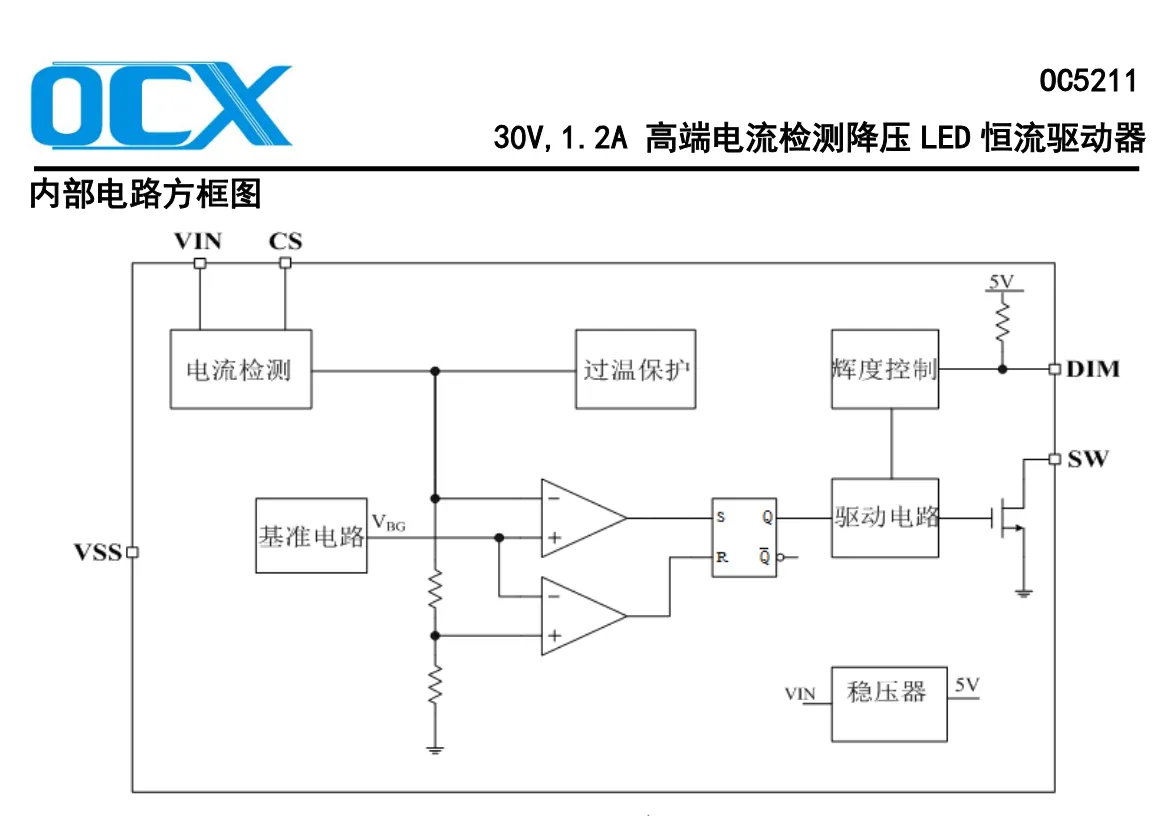
This diagram seems to imply that the chip contains an onboard 5V regulator solely for the purpose of the built-in pull-up resistor?
As a workaround, I decided to add switching to the 12V power supply going to the laser driver. The laser driver board requires high-side switching with a P-channel MOSFET, since the ground pin of the power input is shared with the reference ground for the modulation signals. However, as I can’t output +12V from a GPIO, I added a pull-up resistor from the gate to +12V and an NPN transistor such that the GPIO can pull the gate low.
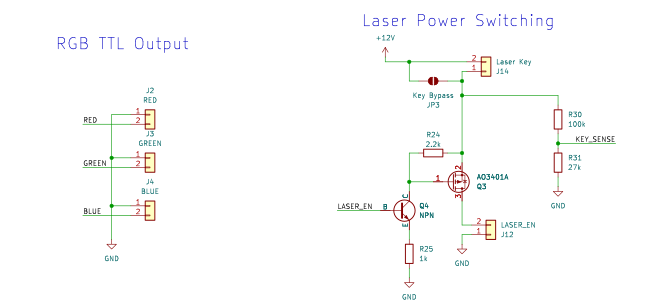
While this is extremely far from a professional product, I wanted to try out some of the steps that would be required for this type of design. Most lasers of this output power have an E-stop interlock and/or keyswitch that must be turned before the laser can be operated, so I replicated this design here. I also added a voltage divider such that the status of the interlock can be read by the ESP32.
#I2C and Wii Accessories
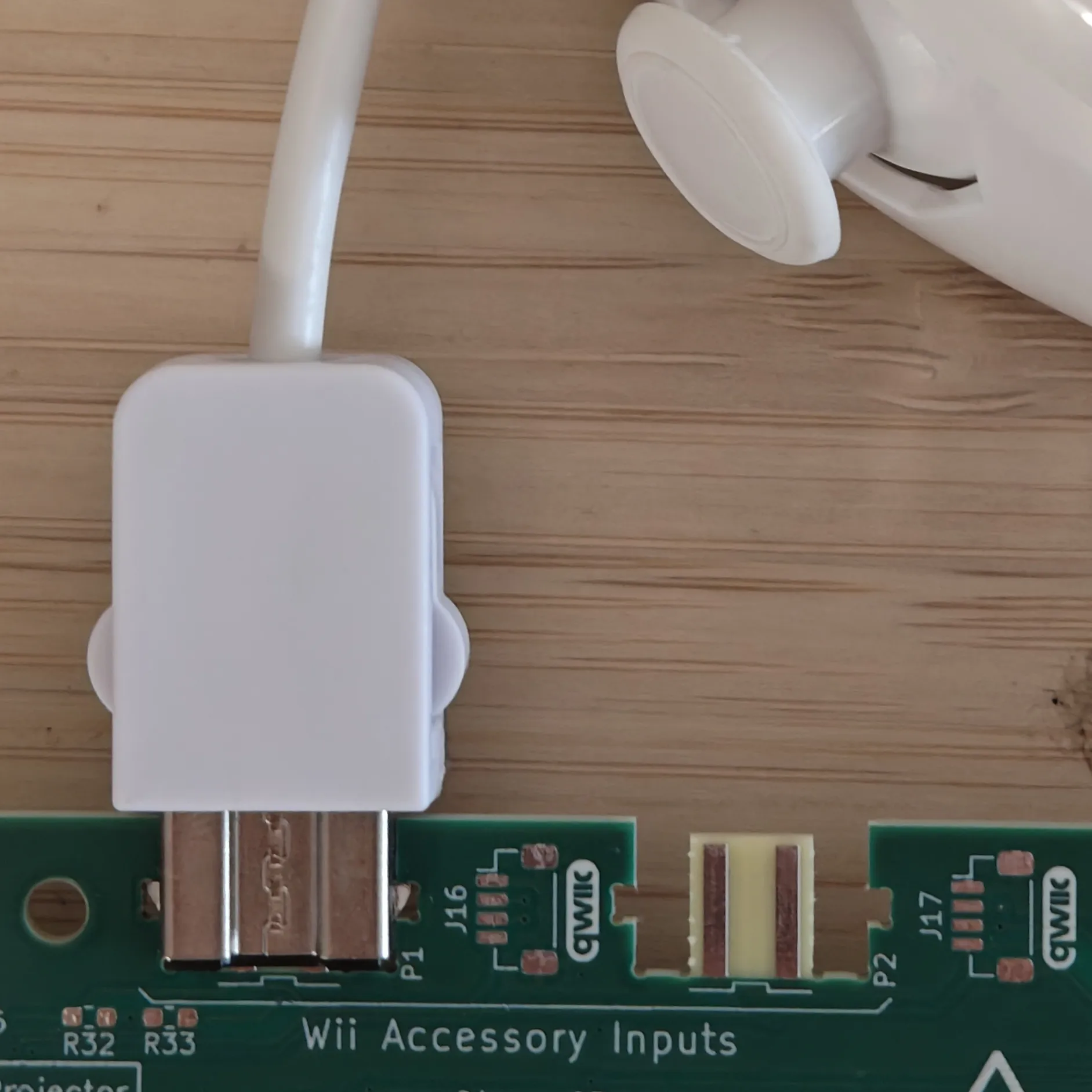
I knew early on that I wanted to use Wii Nunchucks as a controller for this project, as they’re uniquely well-suited for homemade projects. All Nunchucks share the same I2C address, so I had to put the two ports on the two different I2C peripherals. I wanted to add additional room for extensibility to the project (such as for a small indicator display?), but since anything else would likely have a different I2C address to the Nunchuck, I chained those connectors off of the same I2C buses as the Nunchuck inputs. I used Qwiic connectors for easy wiring — they’re quite compact but still possible to hand-solder.
#Enclosure and Construction
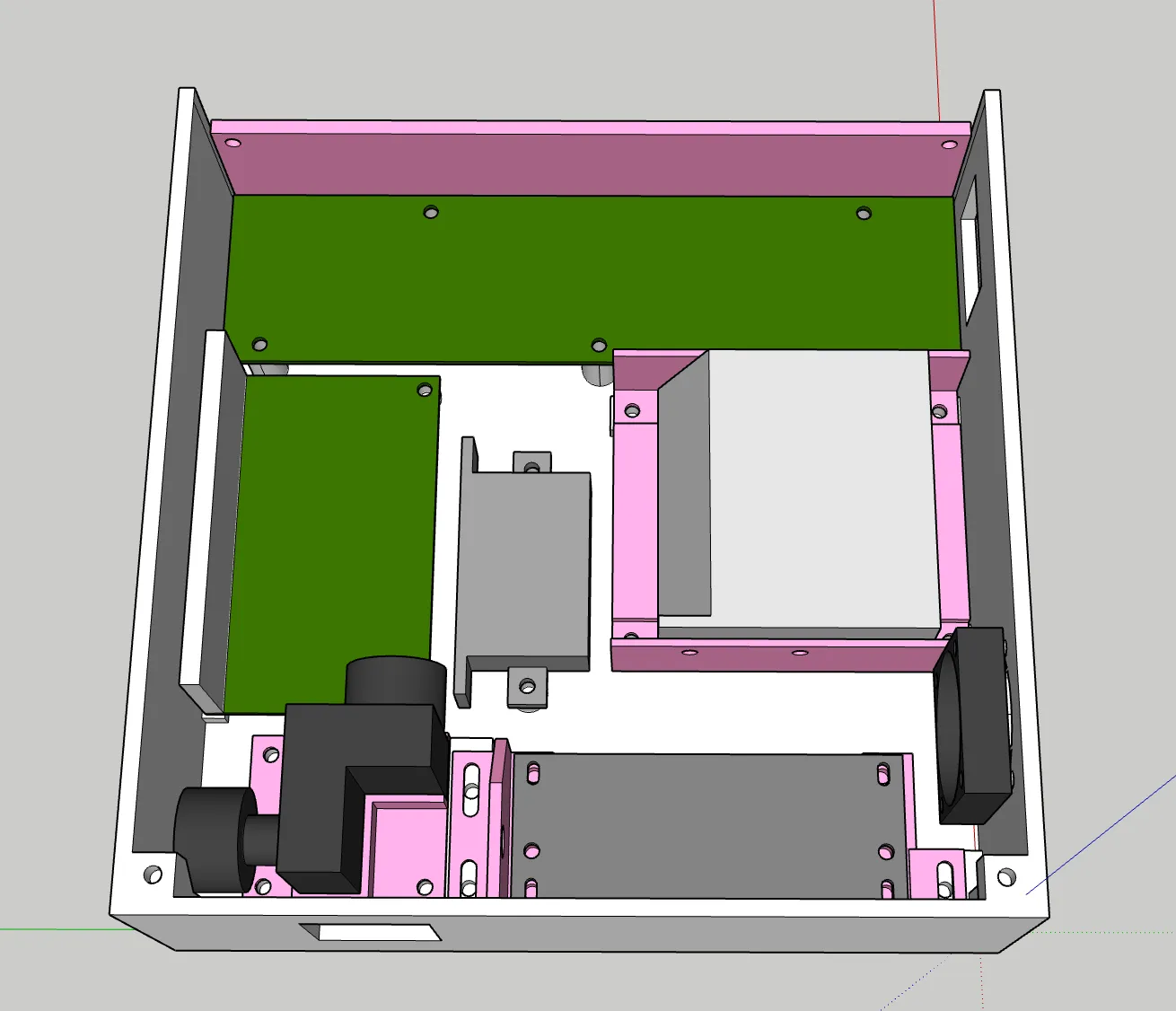
I chose to 3D print the enclosure for this project. At slightly over 200 by 200 mm, it’s definitely on the larger end of what I’m capable of producing on a consumer-grade FDM printer, and failed prototypes were a little more expensive than I was hoping with each print costing about $5 in filament. In the past, I’ve used wood and FDM parts together to make cases of this size, but my apartment lacks woodworking tools and I didn’t want to have to drive to my parents’ garage to build this thing.
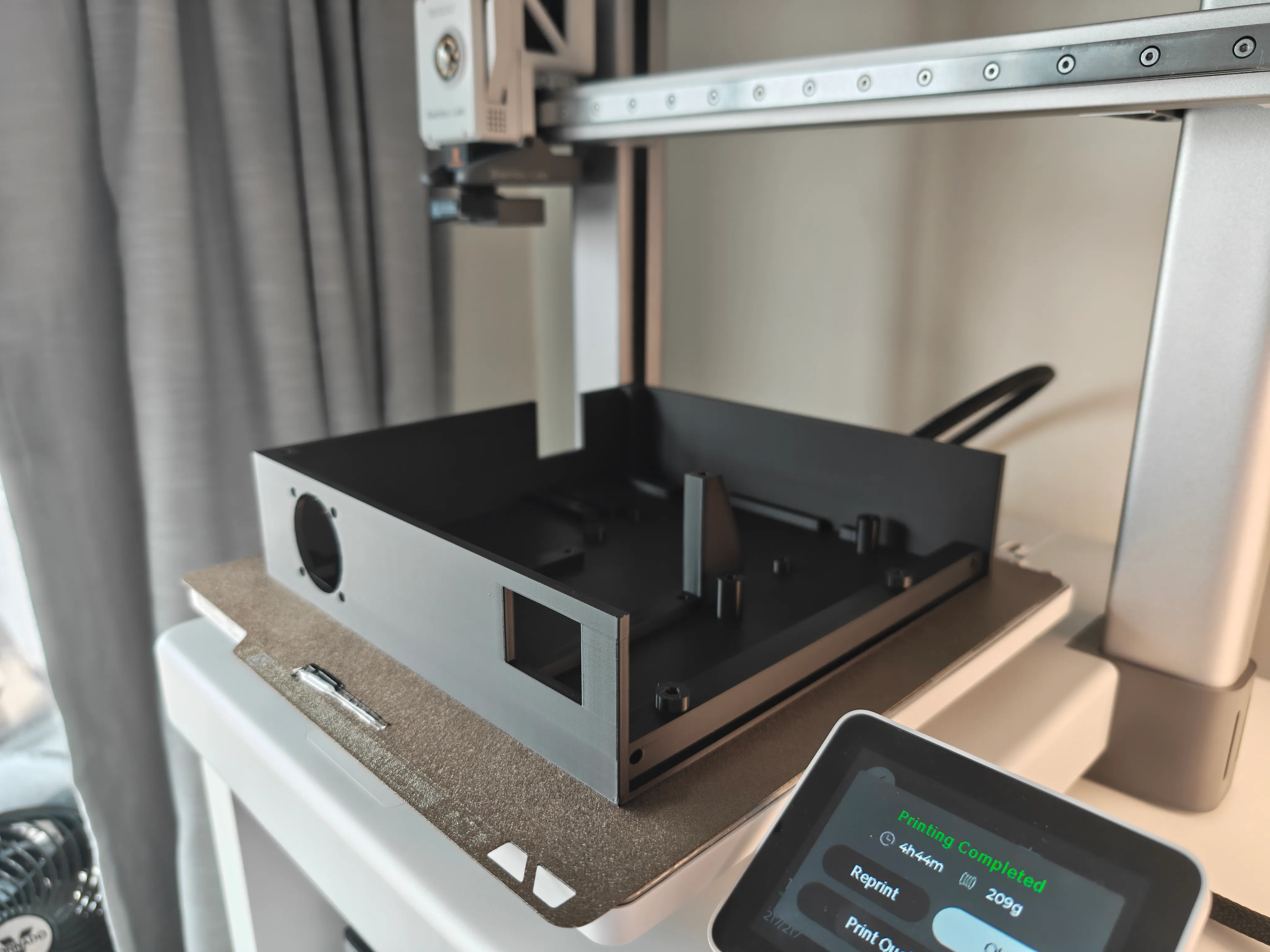
Overall it came out pretty well! The bridging areas I worried about came out alright, and the tolerances for screw holes and the like were perfect. The one issue I encountered was warping — the print looked great on the build plate but warped significantly once removed. This was more of an issue for the top plate than the baseplate and walls, but things look relatively alright once screwed together.
I tried to mount individual components on their own adapters to give as much flexibility for later alignment as I might need — if the laser beam misses the mirror by a millimeter, I didn’t want to reprint the entire enclosure. I put the RGB laser module on slots to make later adjustment easier.
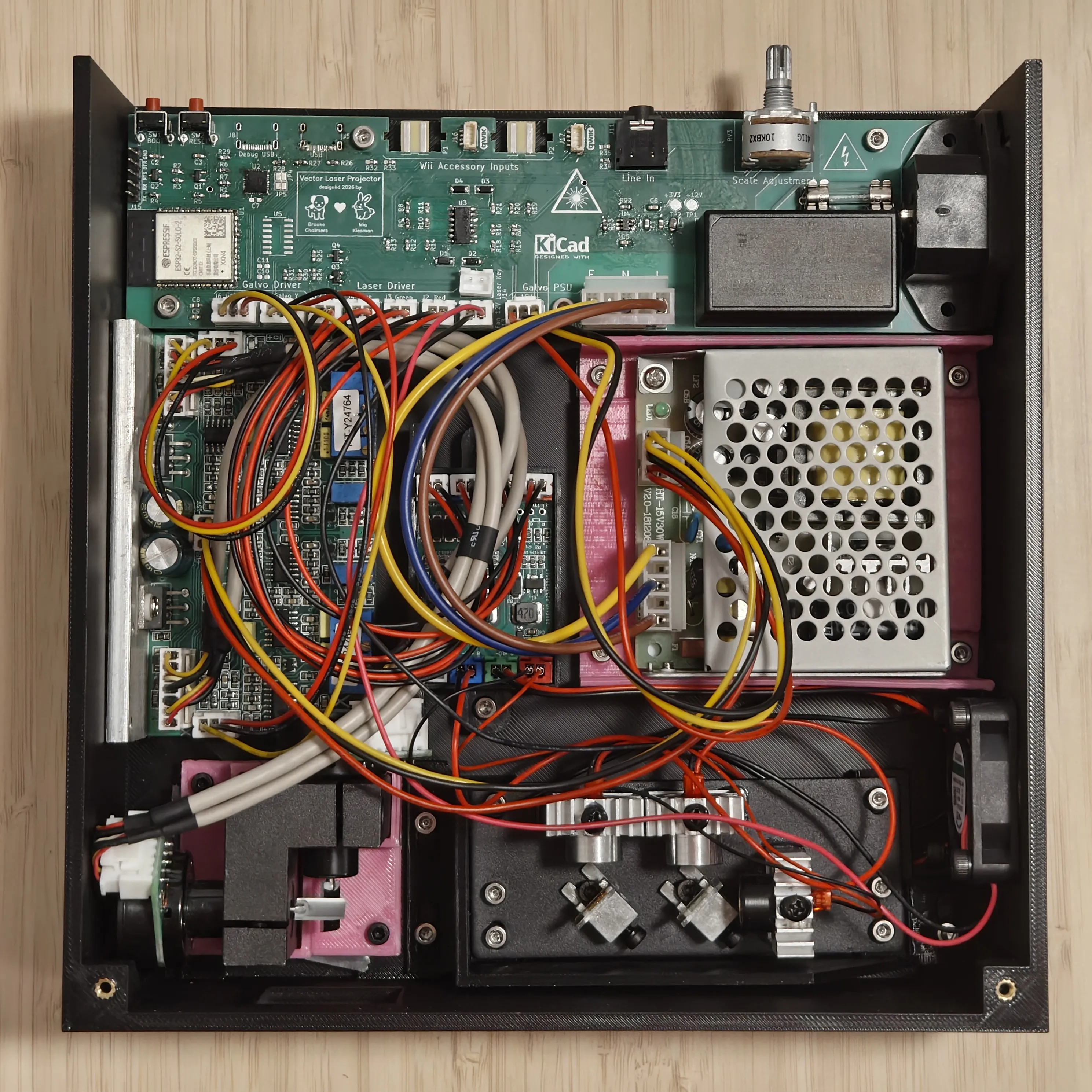
I added a small 12V fan, as the galvo driver board gets quite hot during operation.
Wire management is definitely lackluster, but airflow still seems fine and there are no moving parts to worry about except the mirrors. Many of the cables in use could definitely be re-crimped to a shorter length.
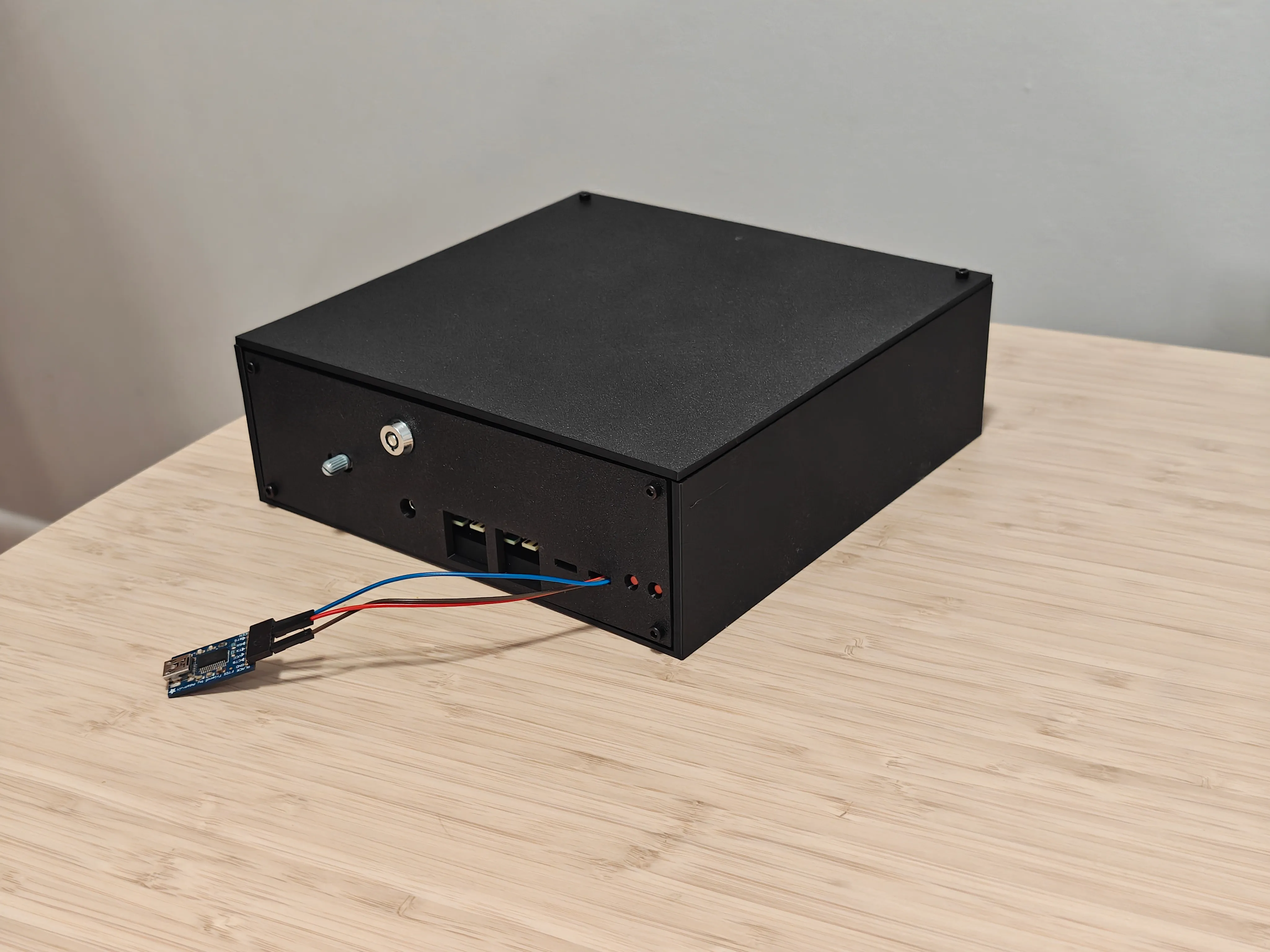
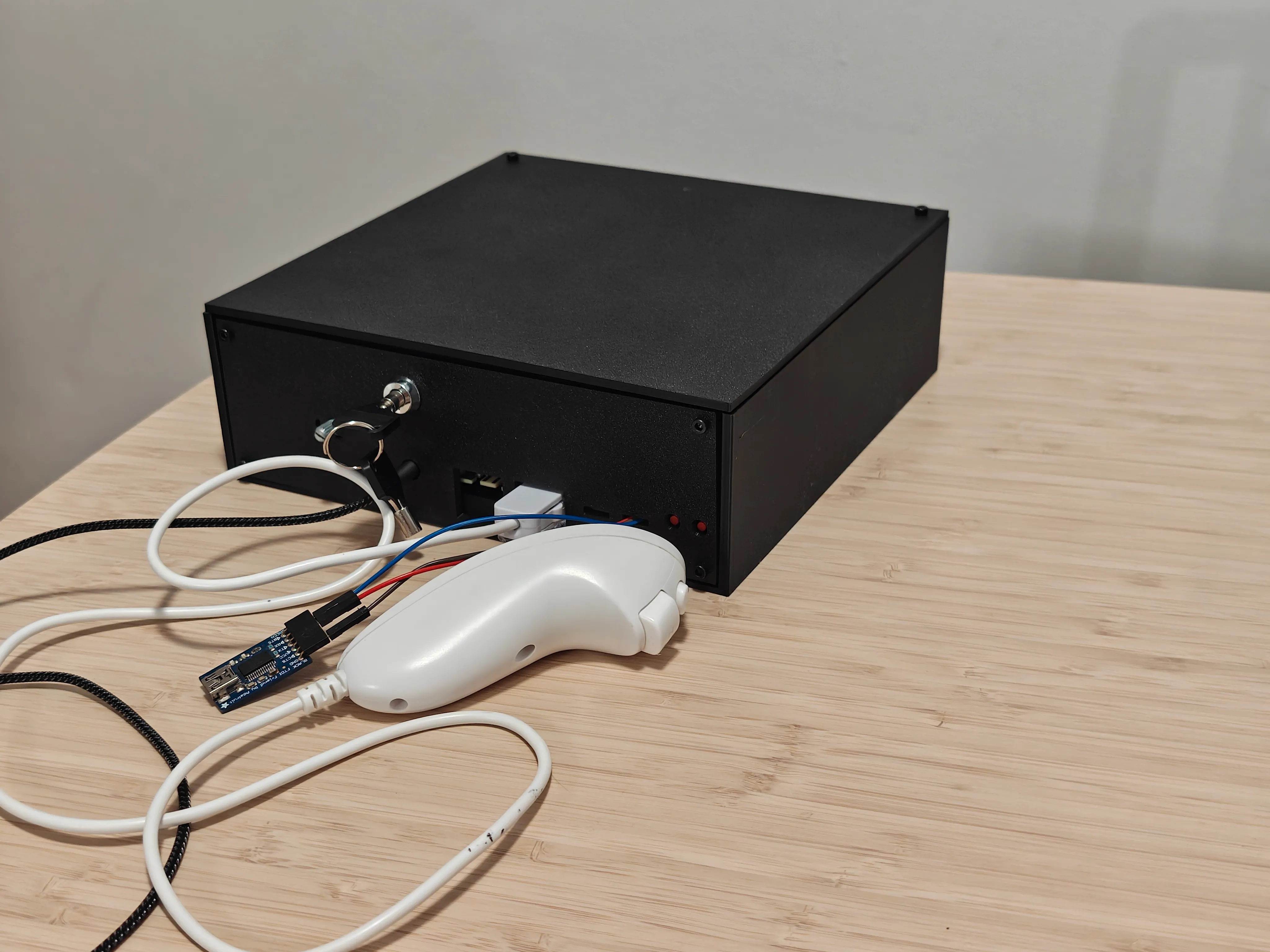
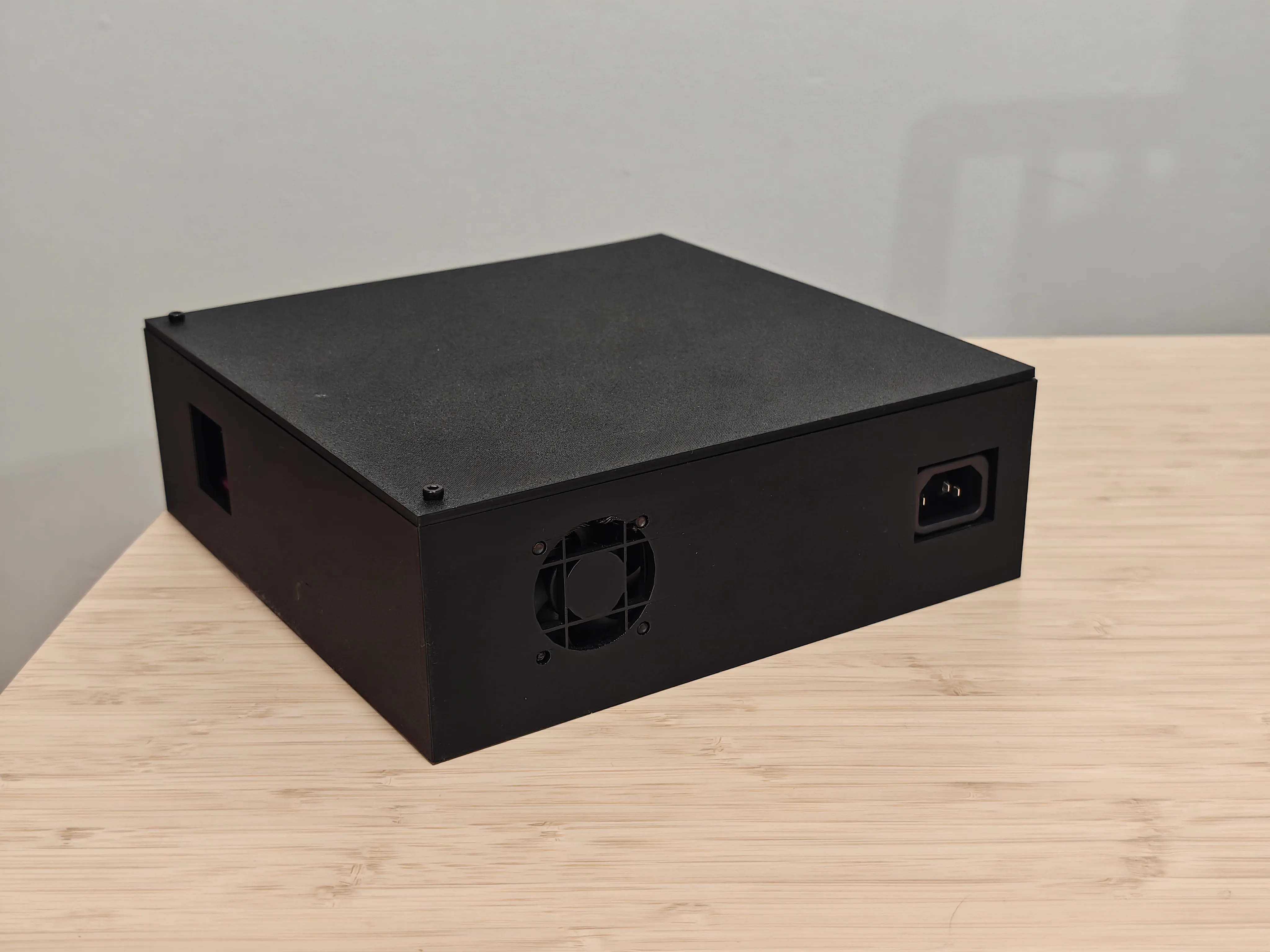
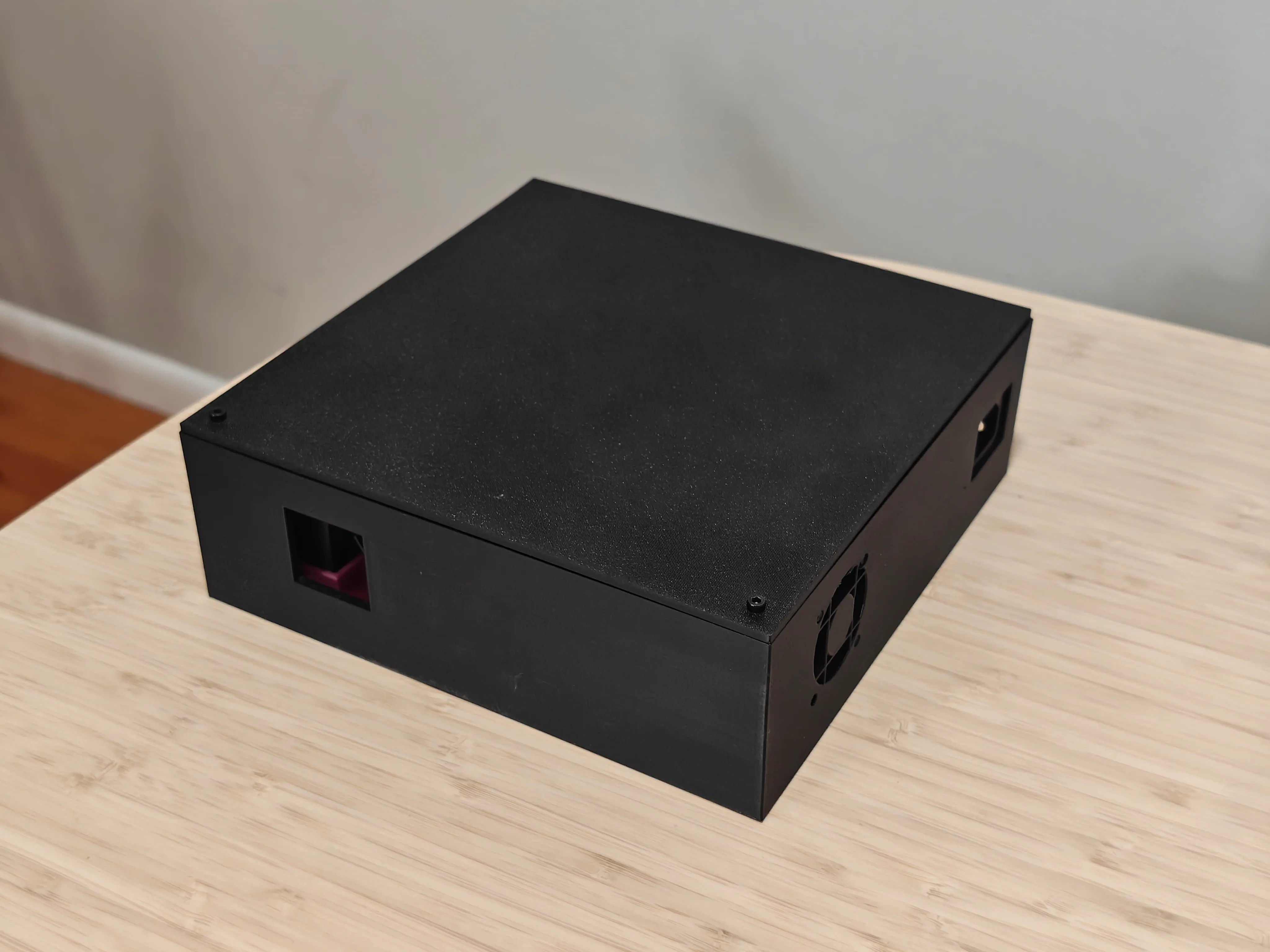
I was dreading making the I/O shield, but it ended up being not too tricky! For each revision, I printed just a single layer before taking it off the printer and test-fitting it to confirm the fit. Once I found one that worked, I printed it at 4mm thickness since it’s structurally used to hold the lid in place.
#Firmware
The ESP32 is notable for its highly developed Rust support. I am a big fan of the Rust language, but haven’t had a chance to use it for firmware development yet. Honestly, I was surprised by how easy it was for me to get started! The ESP32 is the only chip for which the hardware abstraction layers are maintained by the vendor itself (Espressif) instead of by the community.
While Rust ships a large standard library by default, most of its functions rely on having a memory allocator and various common operating system functions like threading, a system clock, synchronization primitives like mutexes, and more. Code running on a microcontroller doesn’t have access to these! Thankfully, most of the standard library functions have direct equivalents: the core crate contains things like the standard builtin types, and alloc crate contains strings, vecs, treemaps, and other collections. I did have to pull in the libm crate in for floating-point math functions, but there’s a tracking issue to get those merged into core.
For an RTOS, I’m using Embassy, which gives async/await support. I am not used to programming in an environment where I have full async/await, but lack most of the standard library! That said, the async approach seems to be a very good fit for embedded code, especially with things like networking involved.
A large part of the fun of this project was just seeing how many sources of vector data I could display with the projector!
#ILDA Test Pattern
Of course, it makes sense to start by verifying our system is tuned properly. There are a lot of adjustment knobs on the galvo driver board!
Source: ILDA Test Pattern (1995)
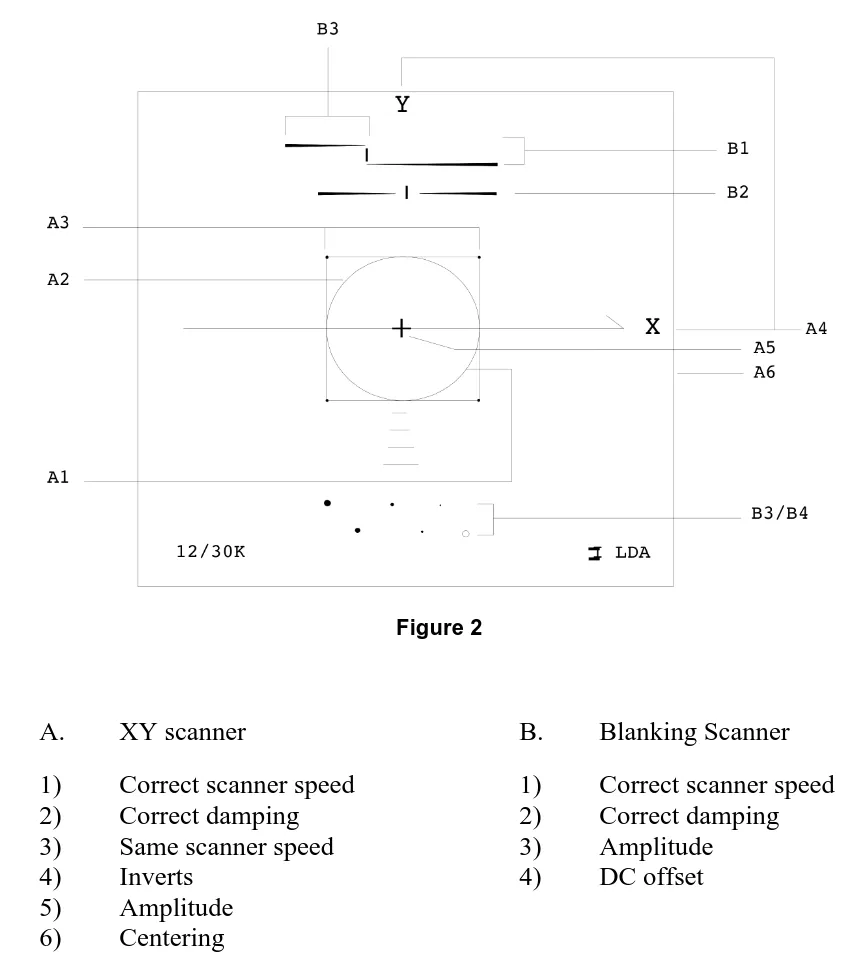
The International Laser Display Association (ILDA) provides a test pattern that can be used for the tuning of RGB galvo-based projectors, alongside a procedure to adjust the PID constants of the galvo driver for the most accurate shape.
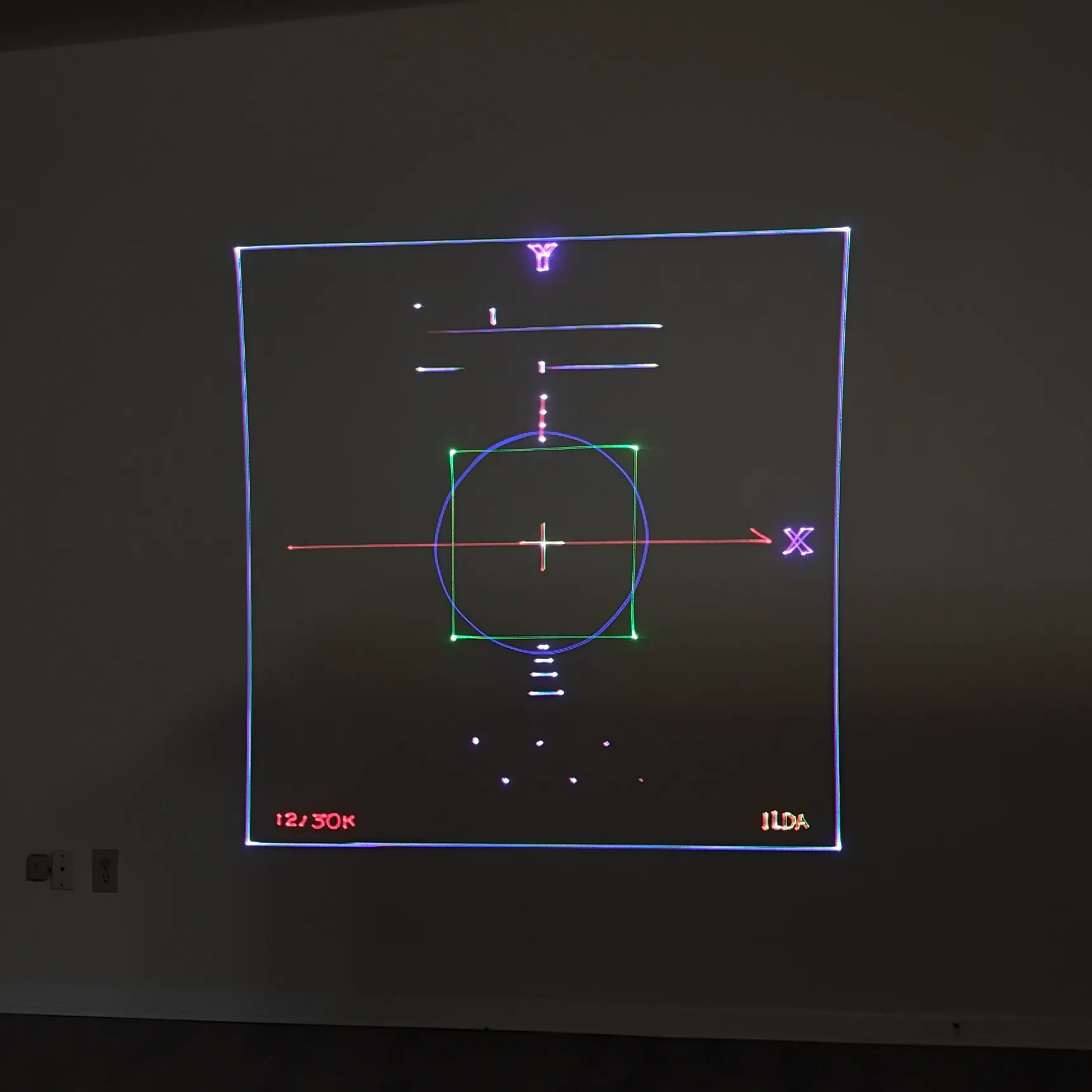
One difference between the ILDA pattern and my setup is that the pattern expects the use of a third galvo scanner to act as a “blanking” control, providing analog dimming of the laser light. Nowadays, most lasers and controllers support high-speed analog modulation of the laser light directly, but historically it was more common to use a physical beam dump attached to a galvo that could move in and out of the light path. The modulation control I have over the laser is quite imperfect, which is probably the reason that the blanking pattern looks the worst out of all parts of the pattern.
A properly-tuned ILDA projector should have the blue circle inscribed into the green square — although the points making up the blue circle are spaced out larger than the square, the intended effect is that the galvos undershoot the desired path and create an inscribed circle. In my case, the galvos are “too good” and thus trace something closer to the true path. However, if I scale up the image using the potentiometer on the op-amps, the image becomes closer to the result that ILDA intended. Since I don’t really care about interfacing with the rest of the laser ecosystem, I deliberately tuned it like this so that graphics would look truer to shape regardless of scaling (up to a limit).
You can also see some “pincushion distortion”: the left and right edges of the outer rectangle look almost “pinched in”. This is an unavoidable artifact of the geometry of an X/Y galvo setup like this. This is often compensated for either in software or with an analog circuit to adjust the X and Y input signals.
#Text and Retro Fonts
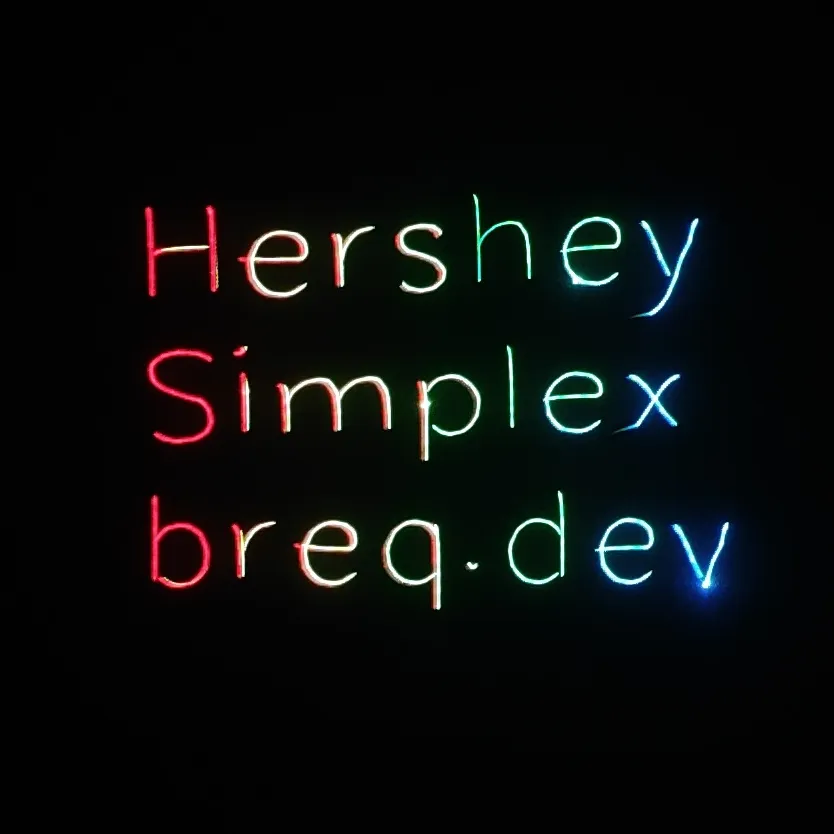
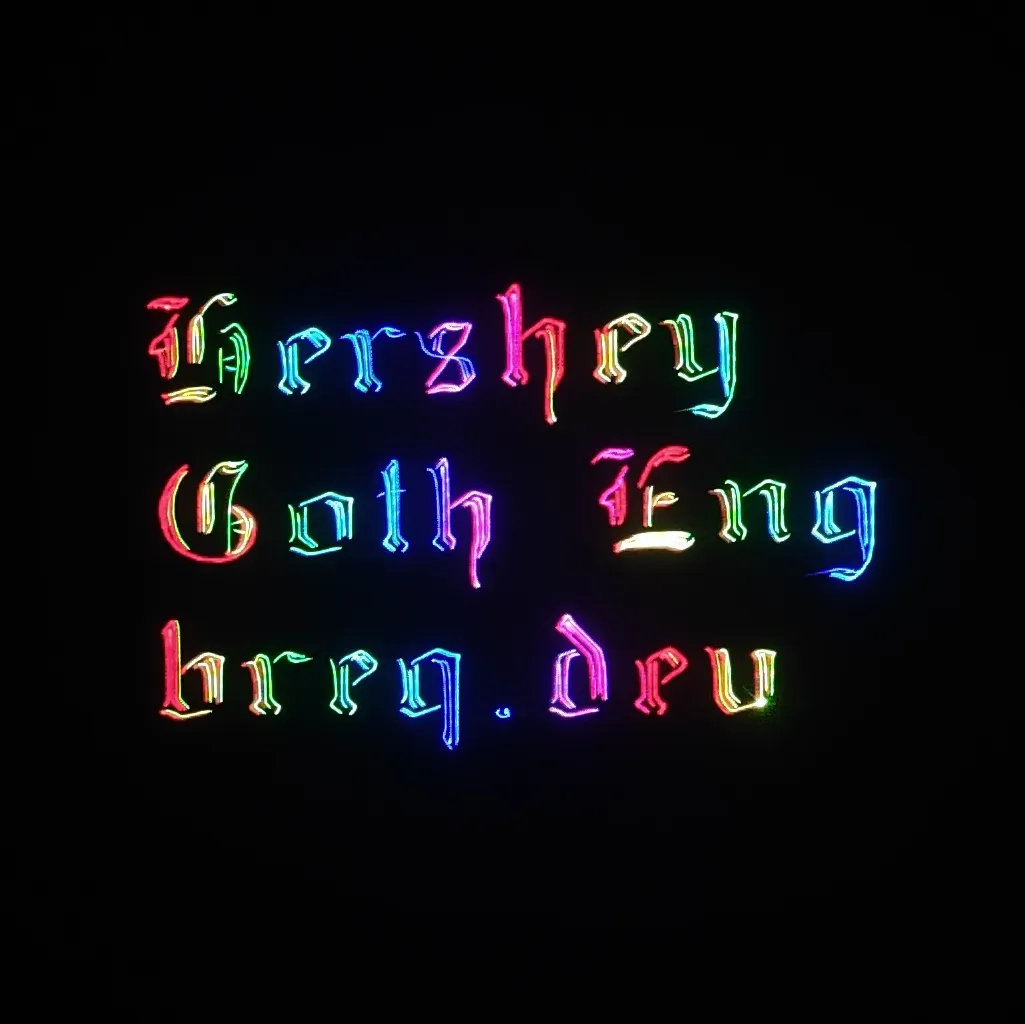
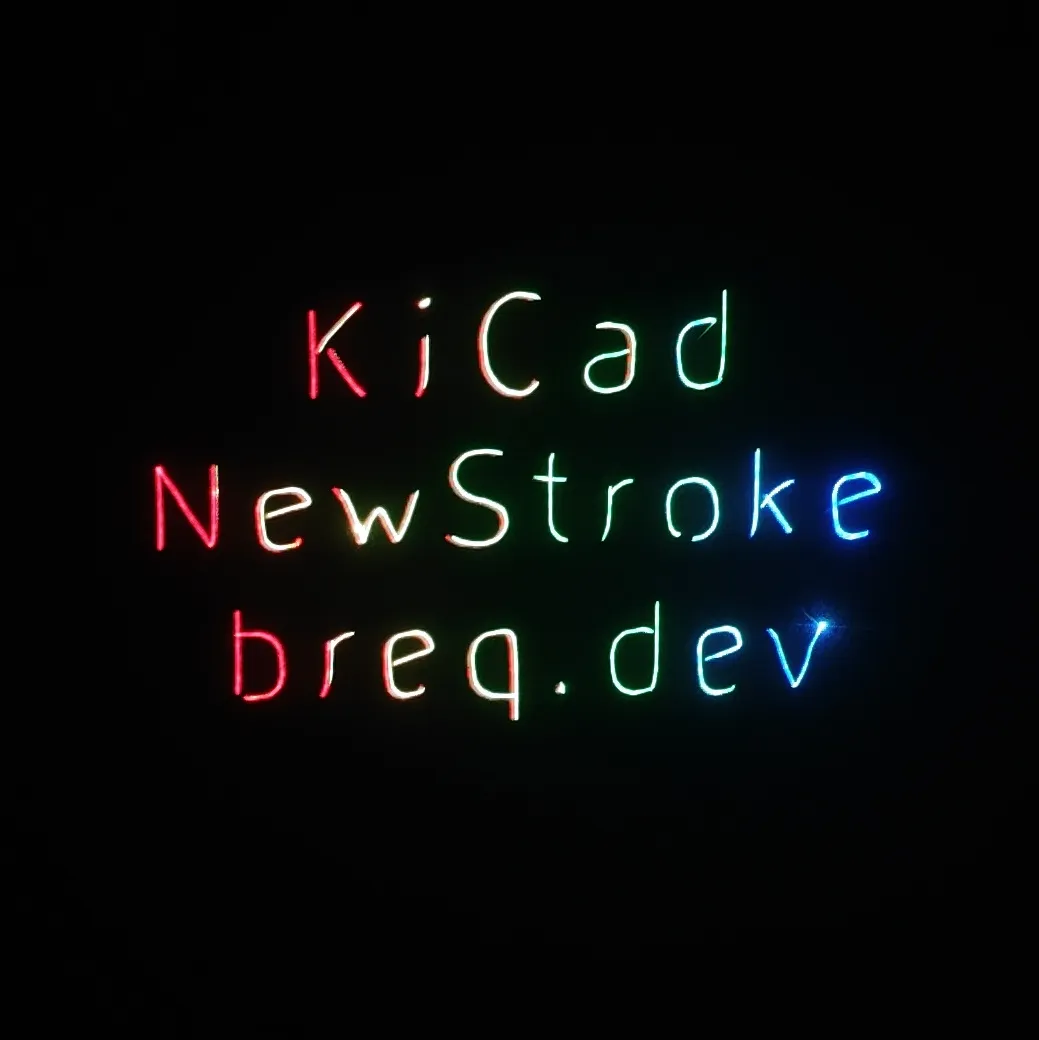
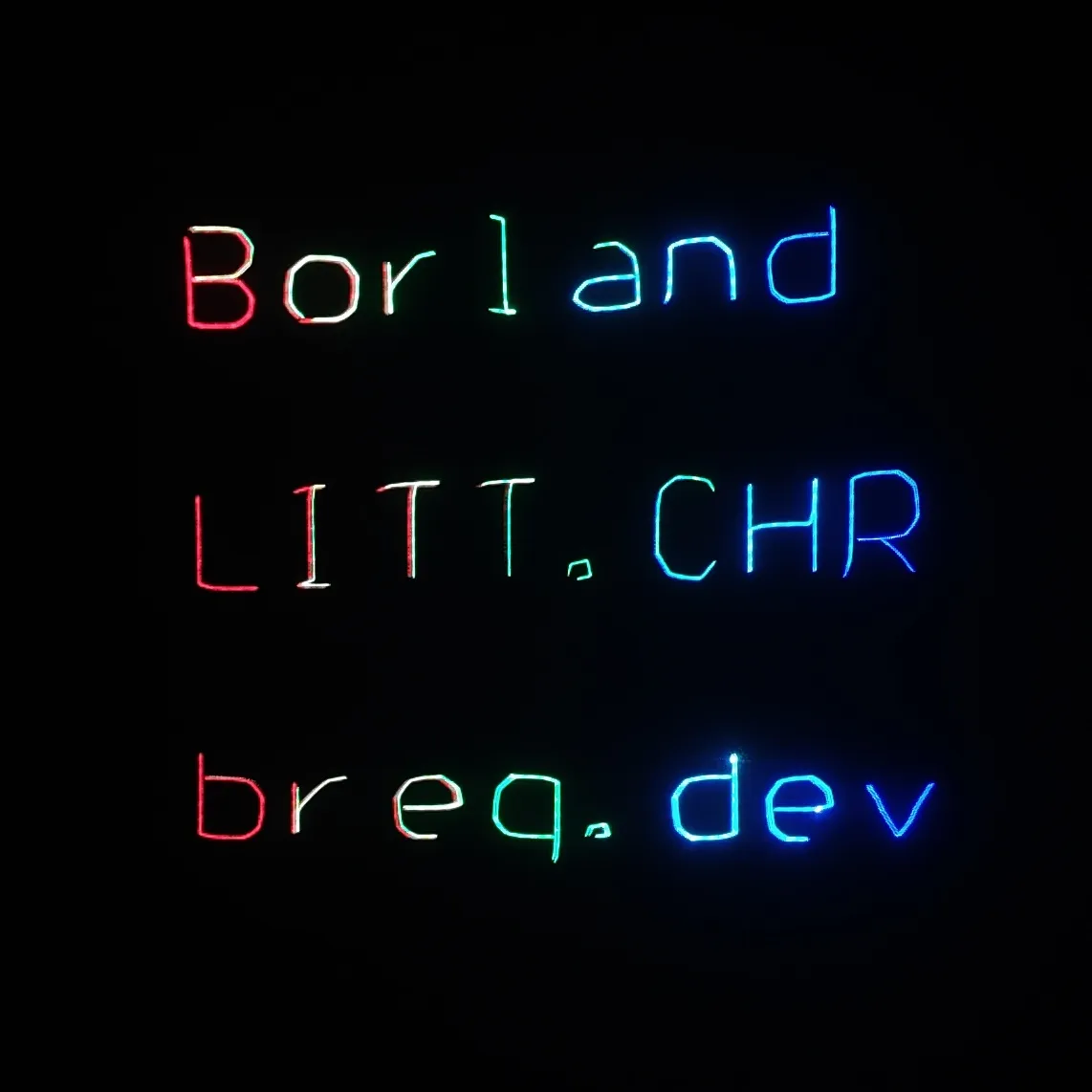
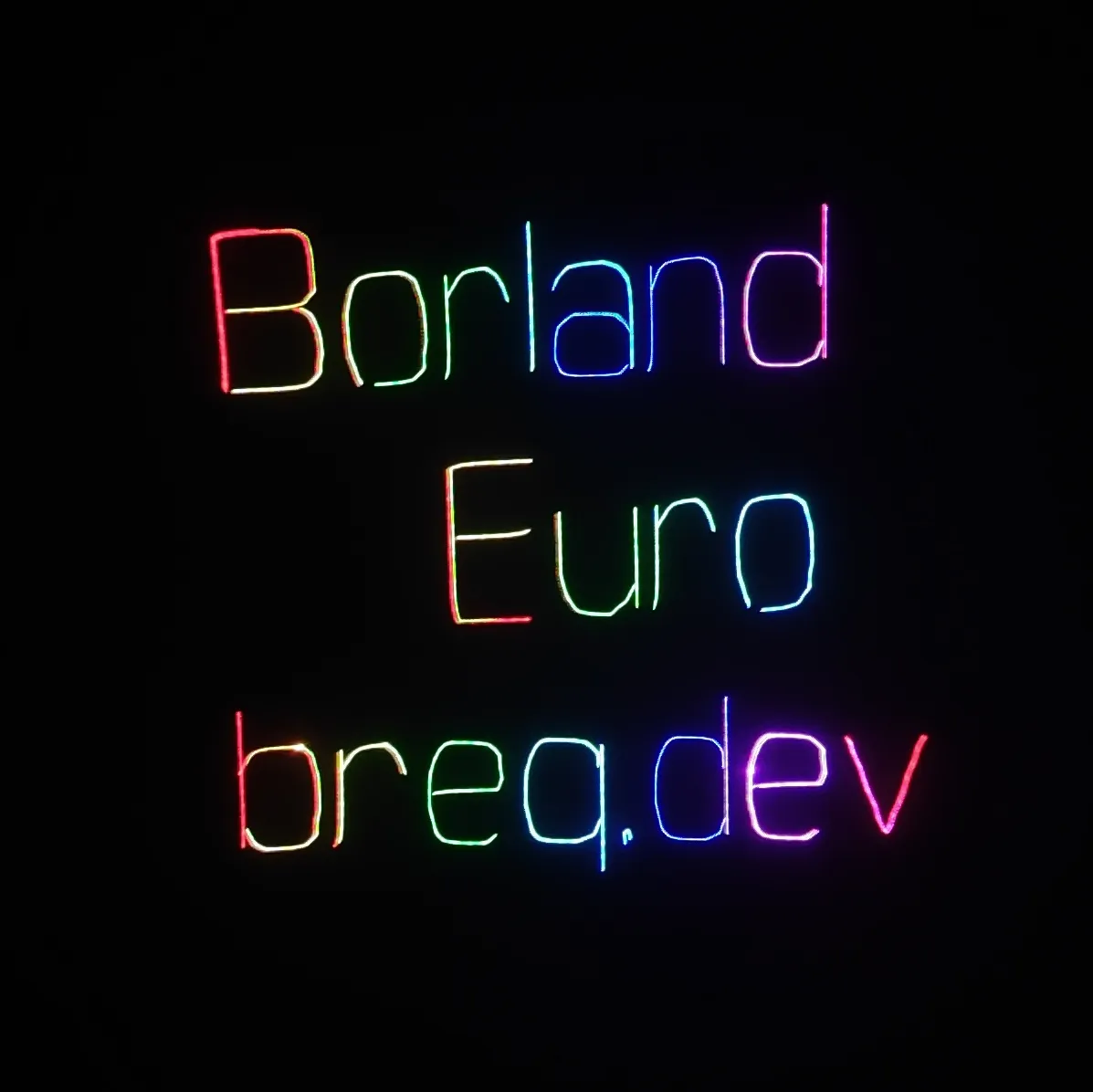
Vector displays excel at displaying crisp vector-based fonts. While the stroke width is unfortunately fixed, shapes look sharp even when viewed from close up.
When I first started playing around with the galvo, I found few libraries for rendering these vector fonts, and even fewer written in Rust. So I wrote my own!
A few of my favorites:
The classic Hershey fonts look excellent. The simplex styles are fast enough to draw such that they’re visible in person, and the more complicated styles still look great in long-exposure photos.
KiCAD’s NewStroke shares similarities with the Hershey fonts, and looks great in person as well.
The Borland Graphics Interface fonts bring much more dramatic styling to the mix. You might recognize LITT.CHR from CadSoft EAGLE (rest in peace!)
#Asteroids
Of course, I wanted to game on this thing. I made an extremely barebones implementation of Asteroids (after all, I was more interested in the display than the gameplay). It looks awesome!
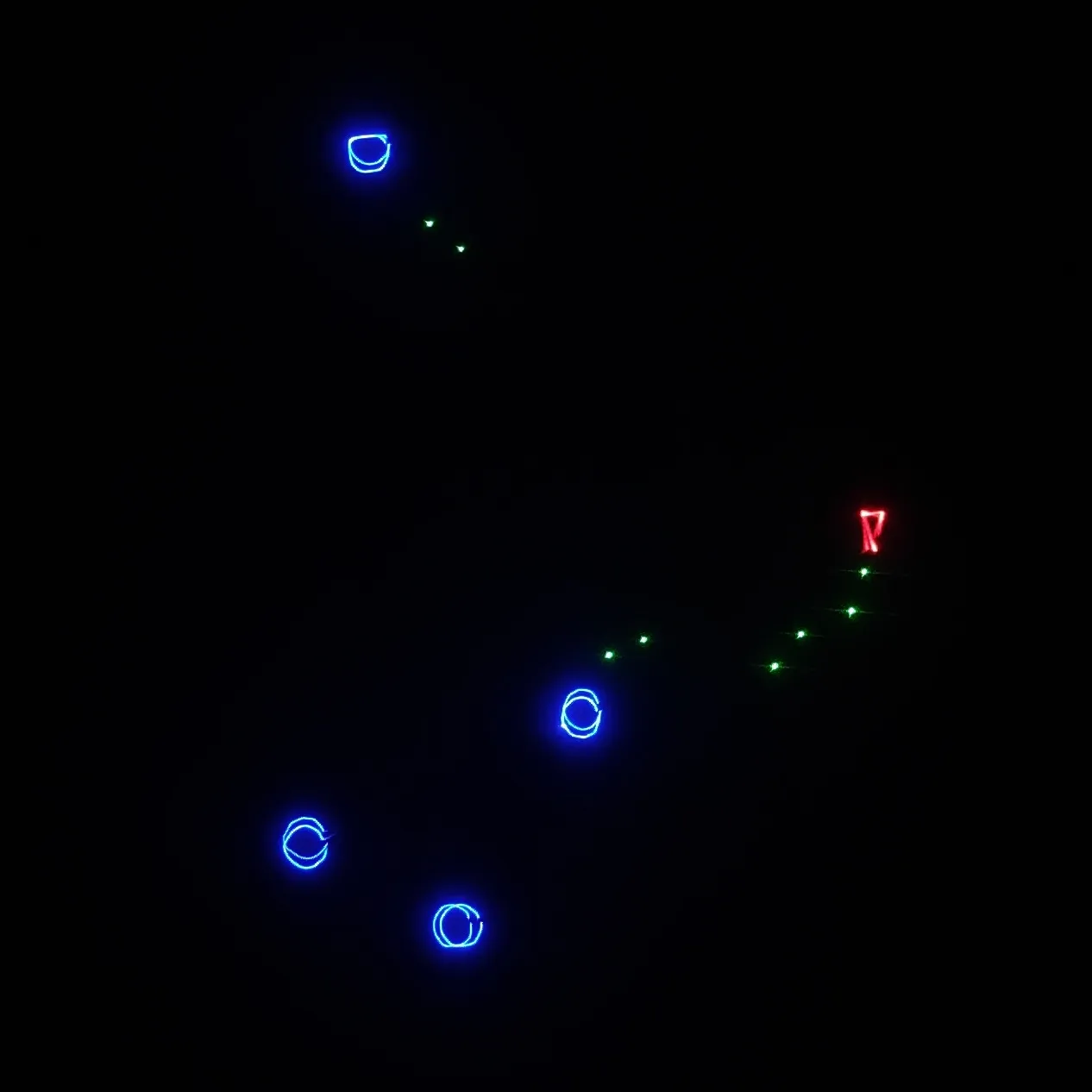
This example was a bit hard to photograph, since the game framerate varied based on the number of objects on screen so I couldn’t quite dial in my camera shutter speed right. As a result, you can see multiple frames in this image with slightly different object positions.
#Arbitrary SVG Data
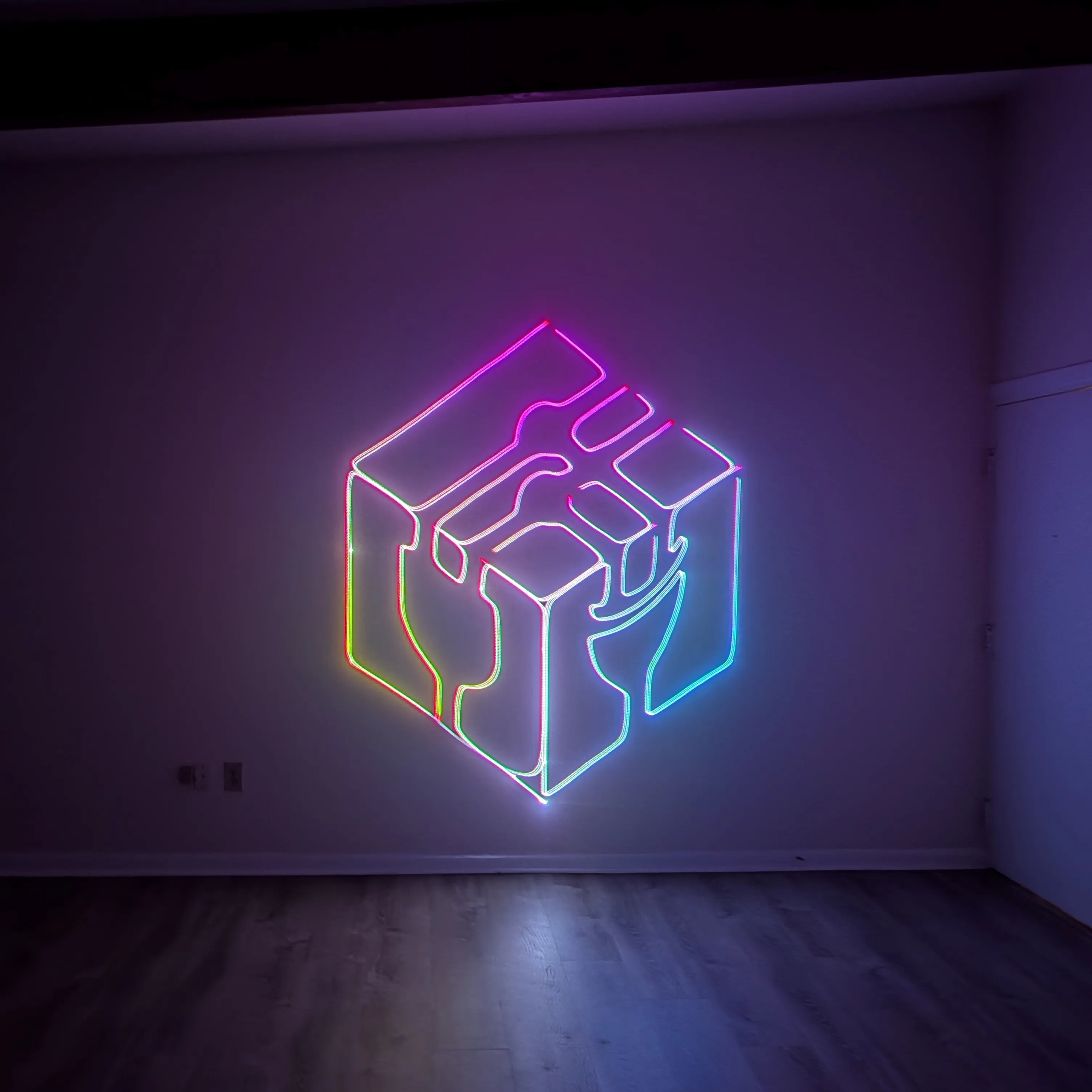
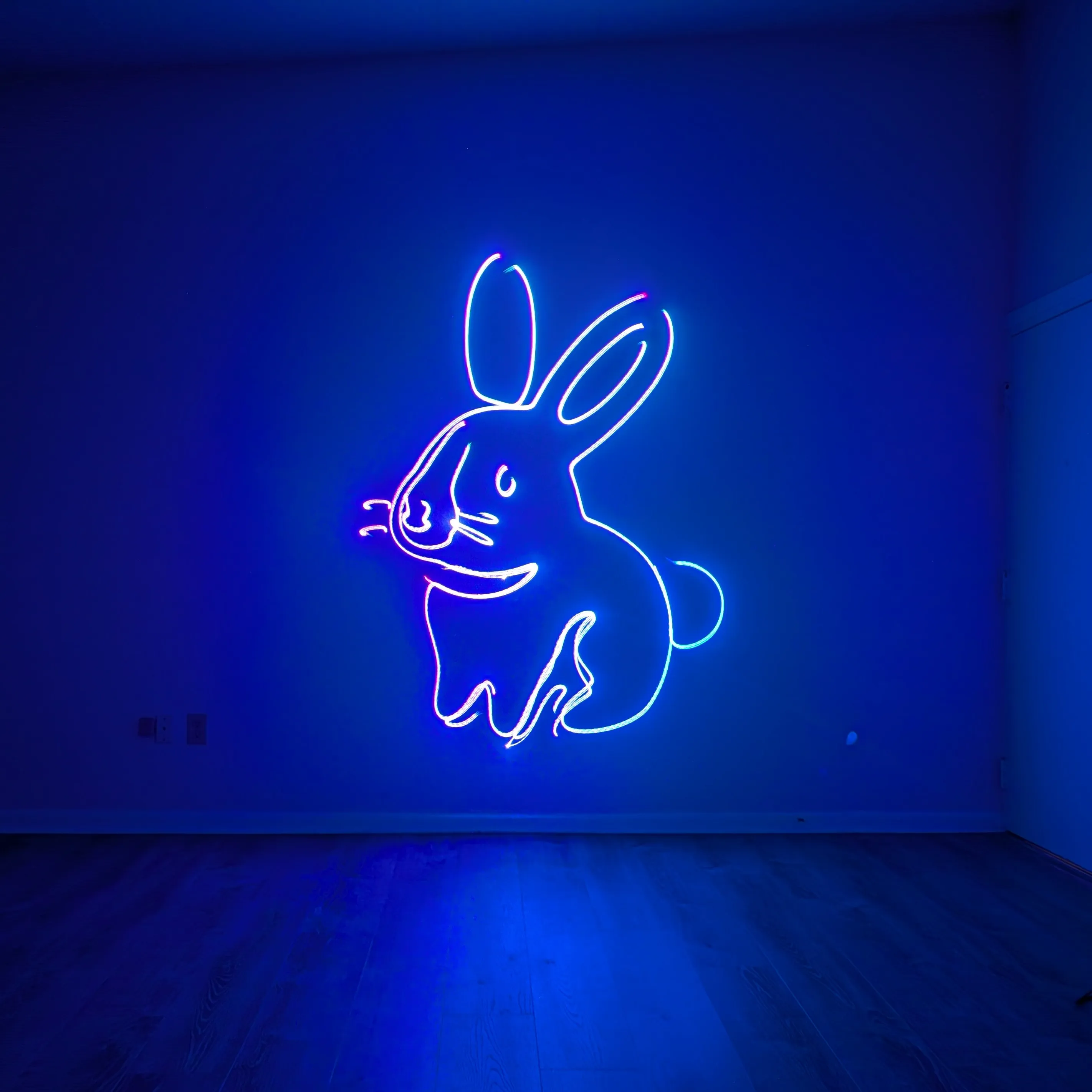
One major source of vector graphics in our modern world is SVGs. For this, I decided to preprocess the SVG file on my computer, then build the list of points into the program.
I wrote a short script using the svgpathtools library to output a list of points:
from svgpathtools import svg2paths, wsvg

paths, attributes = svg2paths('breqcube.svg')

points = []

for path in paths:
    first_point = True

    for line in path:
        for i in range(int(line.length())):
            point = line.point(i / int(line.length()))
            points.append((point.real, point.imag, not first_point))
            first_point = False

    last = path[-1].point(1)
    points.append((last.real, last.imag, True))

for (x, y, pen) in points:
    print(f"{'+' if pen else '-'} {int(x)} {int(y)}")
It could definitely be improved (notably, interpolating both lines and curves to a hardcoded 10 points is not ideal), but it works well enough with the files I have!
#Maps via OpenStreetMap
Another source of vector information is maps. OpenStreetMap provides a nice interface to download map data for vector display.
The most powerful way to extract data from OpenStreetMap is through the Overpass API. To formulate a request, I started using the Overpass Turbo interface to tune my query to return the types of features I wanted — I wanted to show enough recognizable neighborhood features without too many driveways, parking lots, or sidewalks causing the galvos to spend excessive time drawing the image.
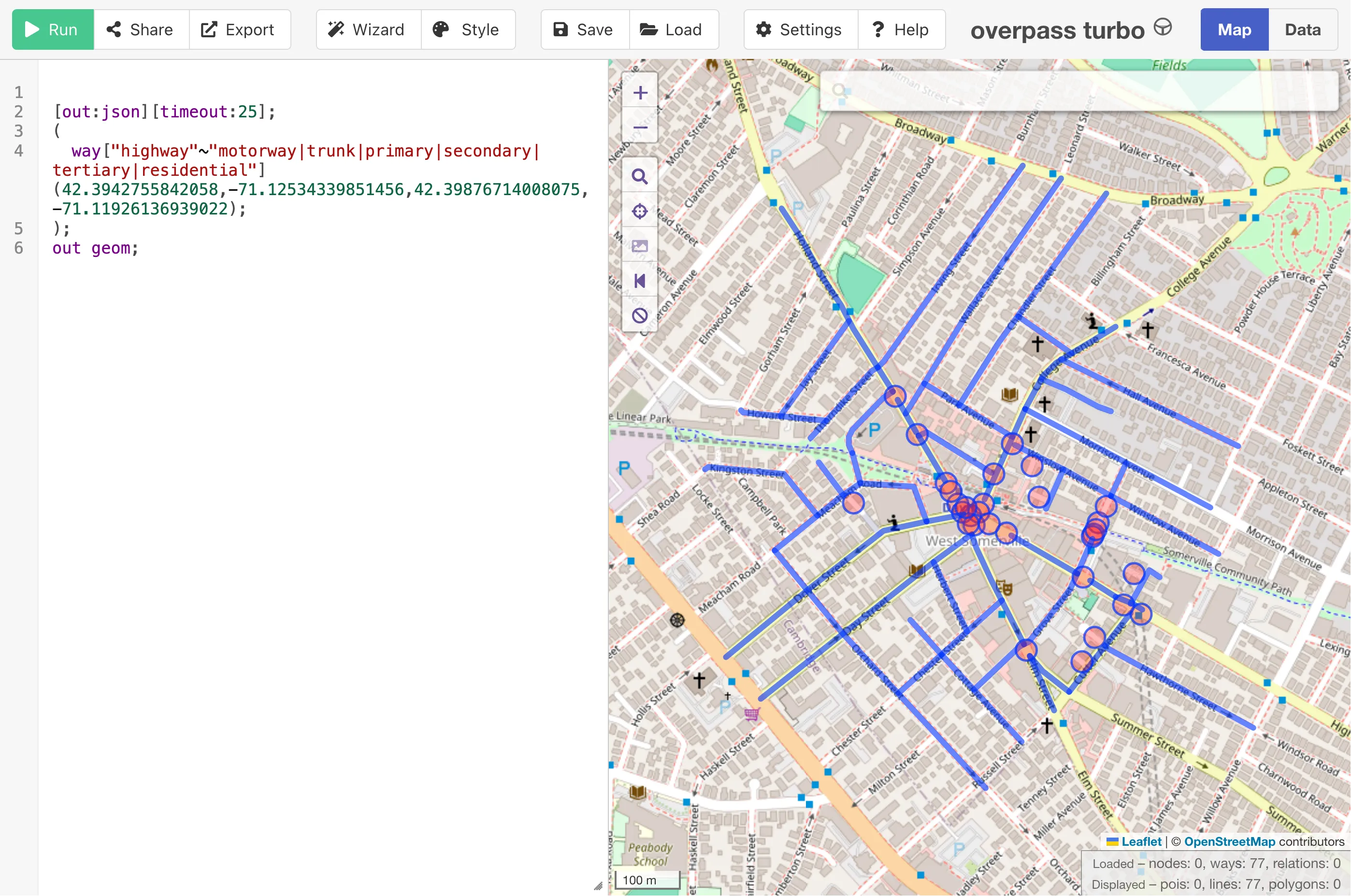
Once I had the query nailed down, I could just paste the payload into a Python script that could take the latitude, longitude, and map size as arguments. Making a query programmatically is as simple as POST-ing it to https://overpass-api.de/api/interpreter and receiving back some JSON:
{
  "version": 0.6,
  "generator": "Overpass API 0.7.62.10 2d4cfc48",
  "elements": [
    {
      "type": "way",
      "id": 8604814,
      "geometry": [
        { "lat": 42.3955979, "lon": -71.12024 },
        { "lat": 42.3956344, "lon": -71.1203257 },
        { "lat": 42.3956969, "lon": -71.1204748 }
      ],
      "tags": {
        "highway": "secondary",
        "name": "Highland Avenue",
        "oneway": "yes"
        // ...
      }
    }
    // ...
  ]
  // ...
}
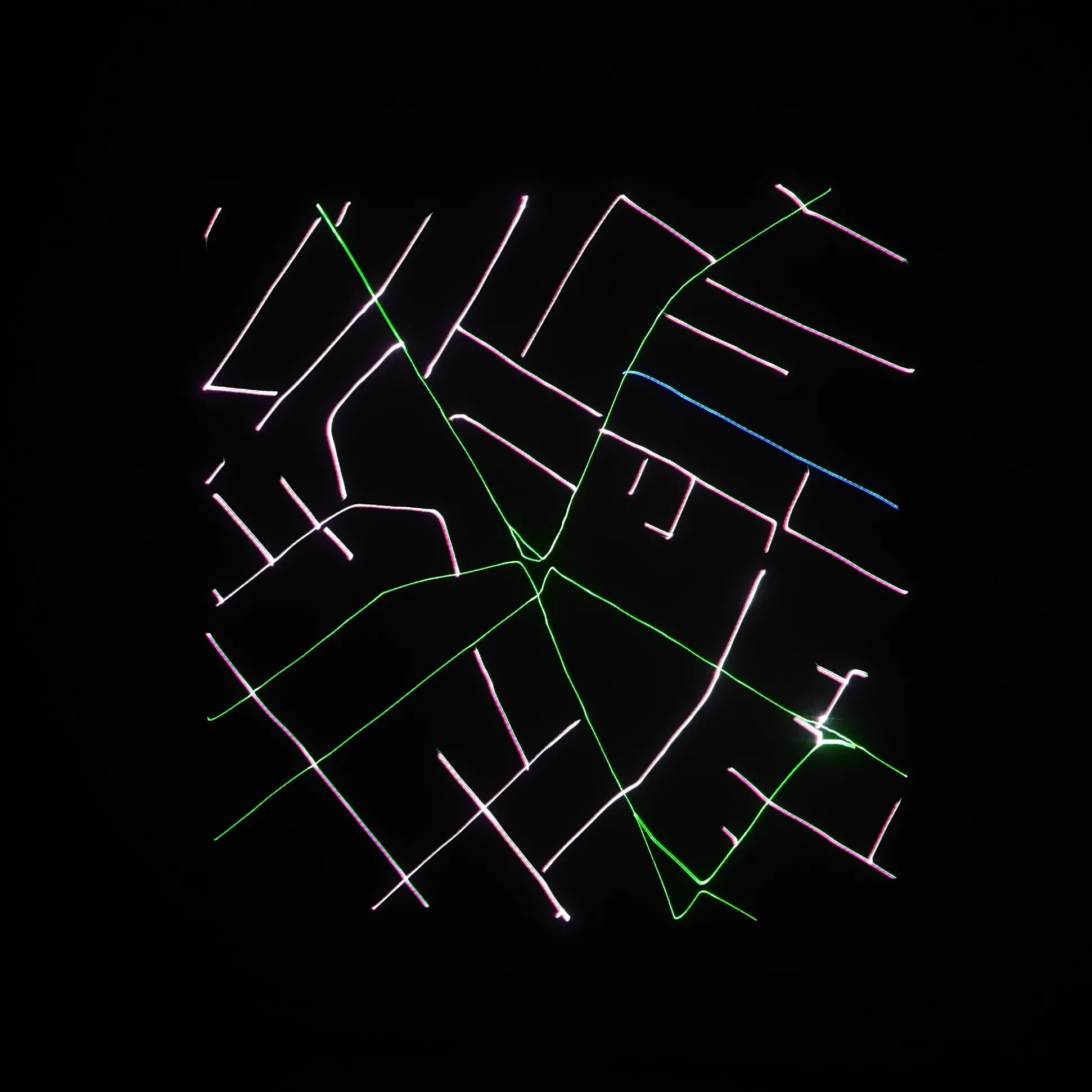
From here, it’s easy enough to plot the output and even color the lines differently based on the road type!
#Oscilloscope Music
Oscilloscope music is an art form in which people create audio files which contain both audible music and display images when connected to an XY-mode oscilloscope (where the left audio channel drives the X axis and the right audio channel drives the Y axis). Of course, any music would create some interesting patterns on an oscilloscope, but oscilloscope music is specifically designed to create recognizable images or intricate patterns.
Since the laser projector has a 3.5mm input which overrides the built-in DAC, playing oscilloscope music doesn’t really require its own firmware (other than “keep the laser on at full blast”), but it’s such a fun application that I can’t help but mention it.
The above is Globetrotter by Chris Allen. While I’ve overdubbed the audio in the recording, the galvos themselves actually do work as a speaker since the physical mirror moving vibrates the air.
#Lessons learned
#Surface mount soldering
When I first attempted surface mount soldering for the LED matrix project I made late last year, I found working with large 0805 and SOIC parts surprisingly straightforward with the soldering iron and tools I already had on hand. It is with that confidence that I decided to attempt to solder chips with even tighter spacing — if going from DIP to SOIC was that easy, was QFN all that much of a leap?
As it turns out, yes it is! While I enjoy learning new skills by doing things and trying stuff out, I think I will have to admit defeat for now on some of the more advanced parts I was hoping to solder.
It wasn’t just one tool I was missing out on:
- Checking the joint quality or looking for bridging on 0.5mm pitch components was quite difficult without a microscope (and my phone camera’s macro mode was a rather inefficient workaround)
- Accurately controlling the amount of solder being deposited on pads was difficult when working with a spool of 0.8mm diameter wire, where something smaller would give me much better control
- While my fine-point conical soldering iron tip worked great, a fine chisel would have given me more control over keeping solder on the tip
- Isopropyl alcohol and a toothbrush would help clean up the mess left behind by flux
I do really want to go back and practice more fine-pitched surface-mount soldering. Going from DIP to SOIC gave me access to so many more parts and so much more flexibility with project designs, and I find more advanced soldering work to be quite fun and rewarding! I hope to eventually get more confident with even smaller package sizes.
#“Unforgiving” programming
I often enjoy working on projects where the line between “awesome demo” and “totally unimpressive” can be a very small difference in code optimization. My past work with audio processing is a good example of that — if you miss filling an audio buffer in time, you get glitching and stuttering that makes your project unusable. Contrast this with most of software development, where processing power is abundant and optimizations are simply a nice-to-have.
This project certainly involved lots of tuning. Running the galvos too slowly produces flickering outputs, but running them too fast makes the output lose crispness as corners get rounded off. There is tons of room for optimization: points where the laser turns on or off need more dwell time than points where the color is constant, points in a straight line can be output faster than points with sharp corners, and optimizing the path that the beam takes to trace out a shape to avoid sharp corners and on/off switches can yield substantial performance gains.
#Mechanical design
I’ve mostly viewed CAD software as a means to an end — I wanted a part with a certain shape, so I would put up with the process of modeling so I could get it on my 3D printer. But with this project, I truly had a ton of fun with designing everything! Having such a blank slate to work off of, exploring tradeoffs with component positioning, and eventually settling on a final outer form was so rewarding.
I think I want to learn a better CAD tool — I learned SketchUp back in middle school, but the free tier has been slowly decreasing in usefulness over time, and I’m getting more frustrated with its inability to represent curves nicely as I move towards more complex designs.
#Bibliography
Early in this project, I decided to look for writeups of similar projects people have attempted. I found a surprisingly wide variety of projects, and definitely took inspiration from many of them when designing my projector!
- The ILDAWaveX16 by StanleyProjects is an open-source device for controlling ILDA-compliant laser projectors. While it also uses an ESP32, it takes a much more serious approach to clean signal generation, including using a dedicated DAC chip for 16-bit resolution (compared to the 8-bit resolution of my setup).
- Bitluni’s laser projector setup uses a phosphor to simulate a CRT-style screen, and adapts a smartphone telephoto lens to increase the deflection of the galvo output without pushing the galvos to higher angles and burning them up.
- Atomic14’s projector has only a single color but seems to be the first example I can find of Asteroids running on a laser galvo setup. I found the discussion on the difficulty of rendering Hershey fonts very informative.
- BenMakesEverything’s raster projector is an interesting take on this approach which uses a polygon scanner for the X-axis and a galvo for the Y-axis to draw scan lines in a similar manner to a CRT. It excels at displaying existing raster-based content such as animated GIFs.
- limpkin’s XY scanner was made back in 2007, but shares a lot of similarities with recent projects. One interesting difference is that it makes use of a hardware blanking galvo (ripped out of an old hard drive), as opposed to modern solutions which modulate the current through the laser diode directly.