Matter integration for LED matrices
Connecting my wall-mounted LED display to my smart home
| created |
- matter
- homeassistant
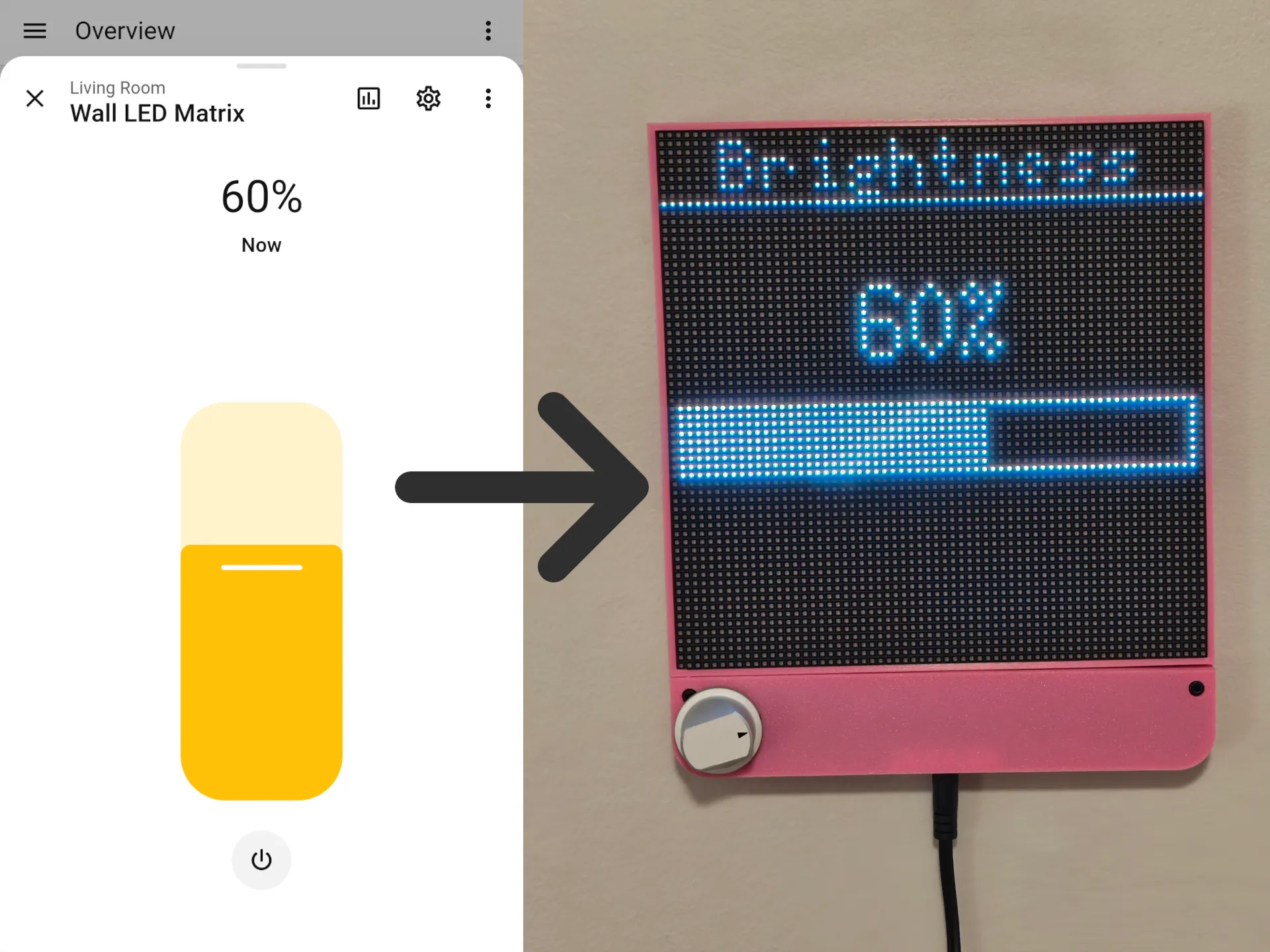
My girlfriend Ava and I recently extended the LED matrix we use to display weather and transit information to receive commands over the Matter smart home protocol.
#Motivation
I have somewhat of an obsession with building interfaces out of HUB75 format LED matrices (the type often chained together to build large video walls). They can be obtained for relatively cheap and are easy to control, but are flexible enough to convey a huge amount of information. I love the vibrant look they have (those close to me will be very familiar with my love of bright colors), how visible they are even across the room, and how simplistic they feel compared to other screens in the home. They bring the helpful, pragmatic, unobtrusive vibe of subway countdown displays into my personal spaces.
Simultaneously, because of polyamory, the room in which our display is mounted at home has begun to function as a secondary bedroom. The screen is bright enough that it has to be turned off at night. We realized it would be nice to tie this into our smart home automation as a Matter device, so we could use it with both the Google Home devices we use for voice control and the Home Assistant instance we use for home/away automation.
The most obvious choice of protocol was Matter, since it didn’t require the Raspberry Pi powering the display to be equipped with any extra hardware and it would allow it to pair to both the Google Home cloud and to my Home Assistant installation simultaneously without any platform-specific code.
#Setting up Matter
Ava did most of the work in this part!
Most of the code for the LED matrix is written in Python. I originally chose Python as it made it easy to write and test additional “screens” for the display, and I could use the excellent rpi-rgb-led-matrix library’s Python bindings to drive the panel.
We looked for a good library that would implement the Matter protocol in Python but came up short. Adafruit’s CircuitMatter was the strongest contender, but we found that it was unable to generate cryptographic keys during the pairing step within the time that Google Home allowed for pairing to take place.
Knowing that we would need to bring in another language, we settled on the Matter.JS library. It’s what powers the Home Assistant Matter integration and worked great for pairing with both Google Home and Home Assistant. We were able to quickly modify the matter.js On-Off Device example for our needs.
We chose to expose the LED matrix as a “dimmable light,” allowing both its on/off status and its brightness to be controlled via the Matter interface. Here’s a simplified example of what that looks like in code!
import {
  DeviceTypeId,
  Endpoint,
  Environment,
  Logger,
  ServerNode,
  StorageService,
  Time,
  VendorId,
} from "@matter/main";
import { DimmableLightDevice } from "@matter/main/devices";

const uniqueId = ...; // keep this in storage

const server = await ServerNode.create({
  id: uniqueId,
  network: { port: 5540 },
  commissioning: {
    passcode: 20202021, // example values
    discriminator: 3840,
  },
  productDescription: {
    name: "Wall LED Matrix",
    deviceType: DeviceTypeId(DimmableLightDevice.deviceType),
  },
  basicInformation: {
    vendorName: "Oomfie Networks",
    vendorId: VendorId(0xfff1), // Development only VID
    nodeLabel: "Wall LED Matrix",
    productName: "Wall LED Matrix",
    productLabel: "Wall LED Matrix",
    productId: 0x8000, // Development only PID
    serialNumber: `matterjs-${uniqueId}`,
    uniqueId,
  },
});

const endpoint = new Endpoint(DimmableLightDevice, { id: "dimmable" });
await server.add(endpoint);

endpoint.events.onOff.onOff$Changed.on((value) => {
  console.warn(`Device is now ${value ? "on" : "off"}`);
});

endpoint.events.levelControl.currentLevel$Changed.on((value) => {
  const percent = Math.round(((value ?? 0) / 254) * 100);
  console.warn(`Brightness is now ${percent}%`);
});

await server.run();
Ava looked into a few different ways to implement the communication between the JavaScript-based Matter client and the Python-based part of the project, such as FFI calls between Python and JavaScript, but we realized setting that up would add a lot of complexity. We eventually chose a Unix Domain Socket since it was by far the simplest option. The code uses a simple bespoke “on” / “off” / “set brightness” protocol. Importantly, commands need to flow both ways: if the user uses the dial on the LED matrix to adjust the brightness, that device state update needs to be reported back upstream to the Matter controllers.
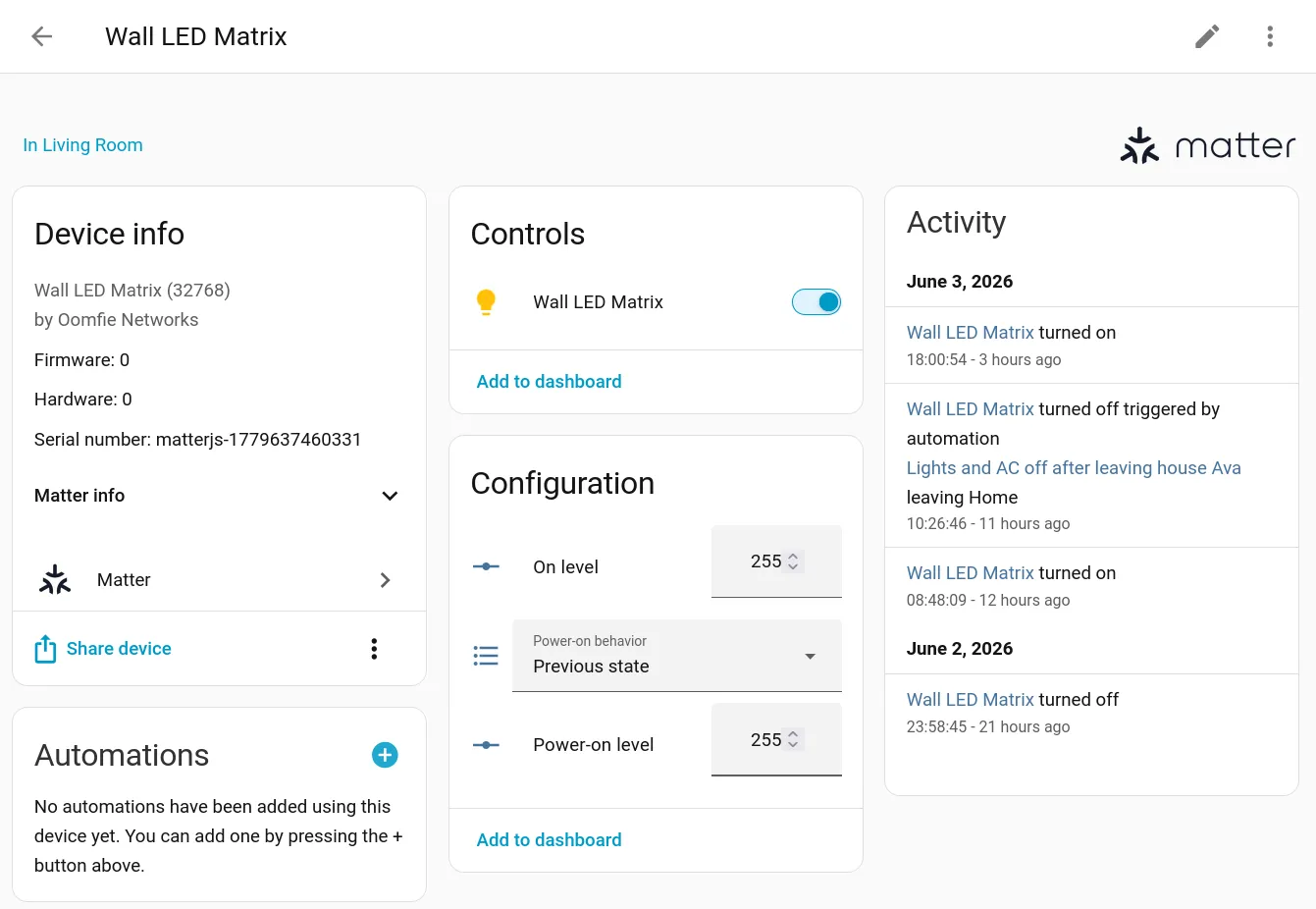
Here’s a screenshot of how the device appears in Home Assistant. As you can see, it triggers nicely from our home and away automations, and it also responds nicely to “good morning” and “good night” voice commands via Google Home!
#Other small upgrades
A long-overdue upgrade was redesigning the bottom piece of the enclosure to better support the back of the PCB and prevent the board from flexing with the dial button was pushed in. Previously, when pushing on the button, the board would flex out of the way first, making it unreliable and difficult to actually press down enough to register a click. Fixing this unfortunately required making two screws visible which were once contained internally, making the surface just a little bit less clean.
It does, however, mean I get to play around with either changing the front panel color or leaving it off to expose the board behind it! I did end up wanting a cover to help reduce light leakage from the Raspberry Pi’s LEDs and make the project look a bit tidier, and since bare PCBs do look a bit out of place in home decor. I tried using translucent purple filament to make an interesting faceplate too, but the 2.5mm air gap between the plate and the PCB combined with the fine pattern on the PCB mean that it’s sort of just a uniform dark purple color. In the end I went back to the solid pink faceplate.
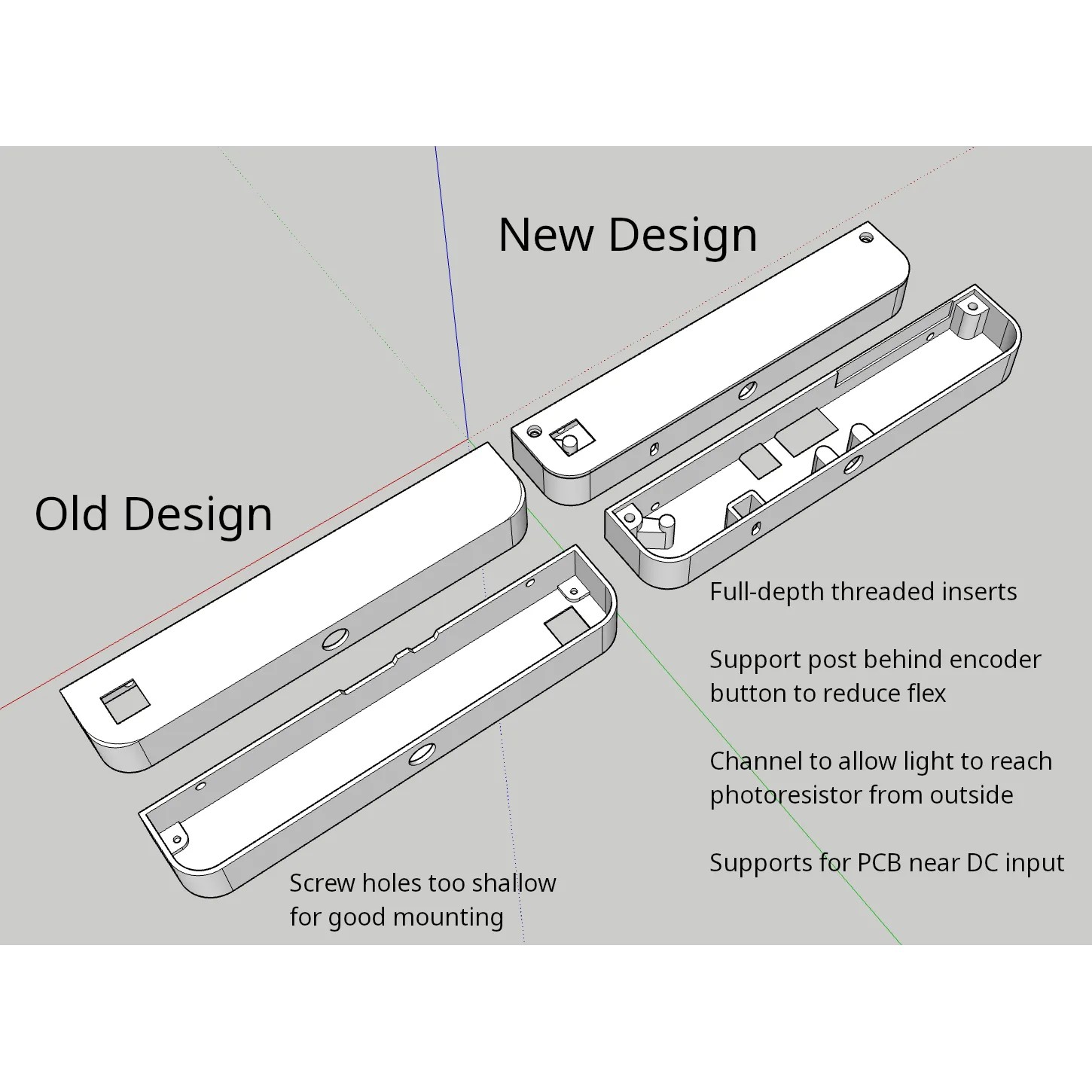
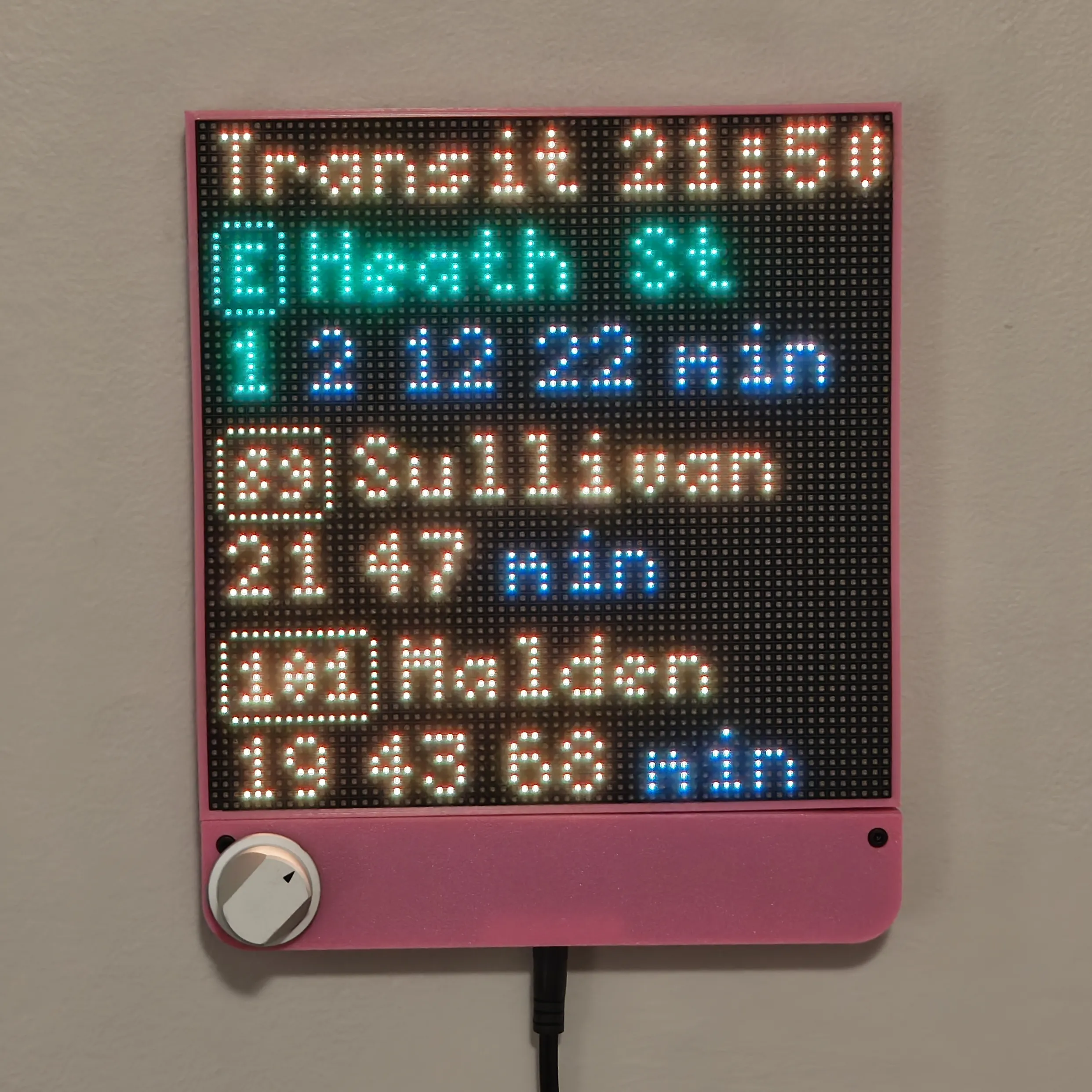
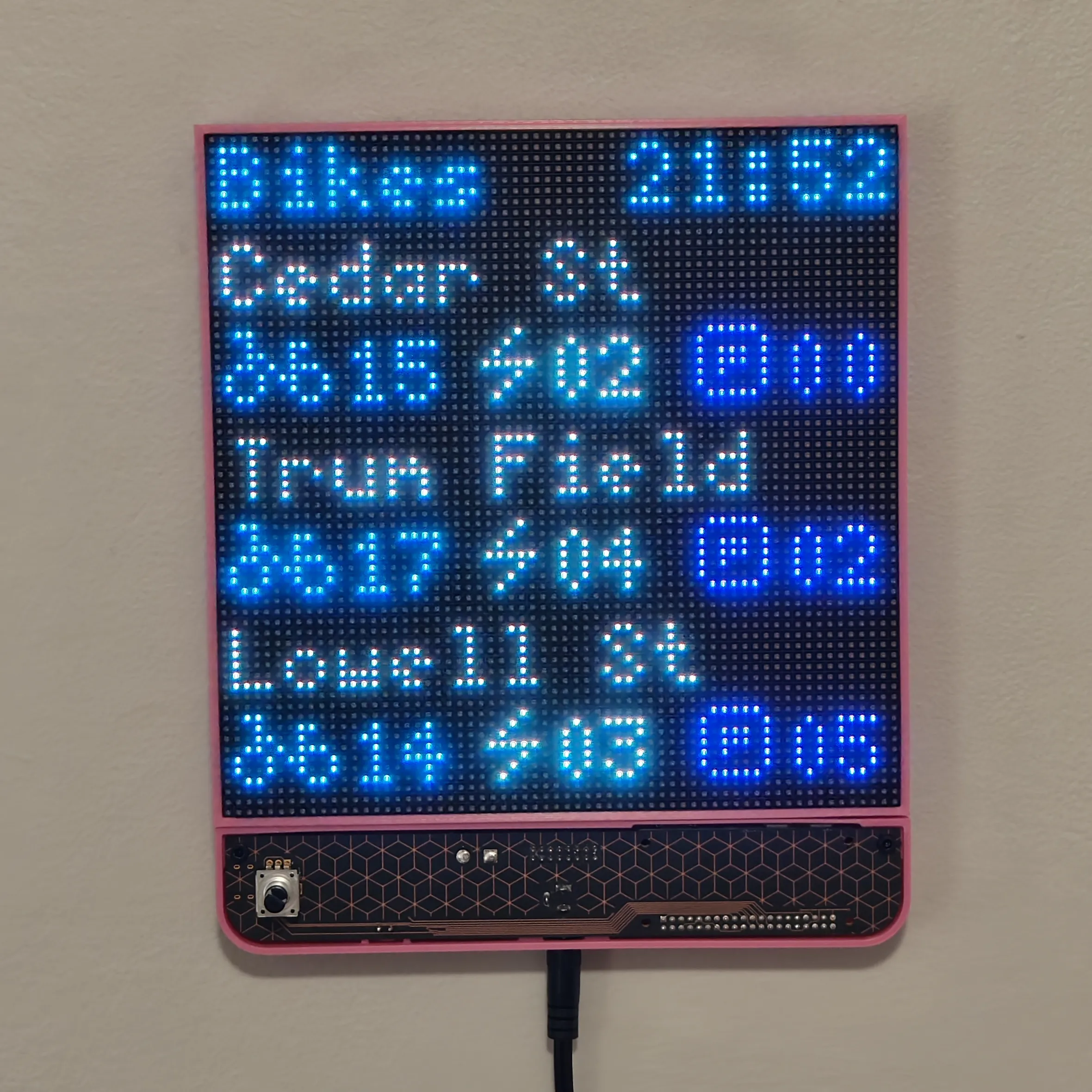
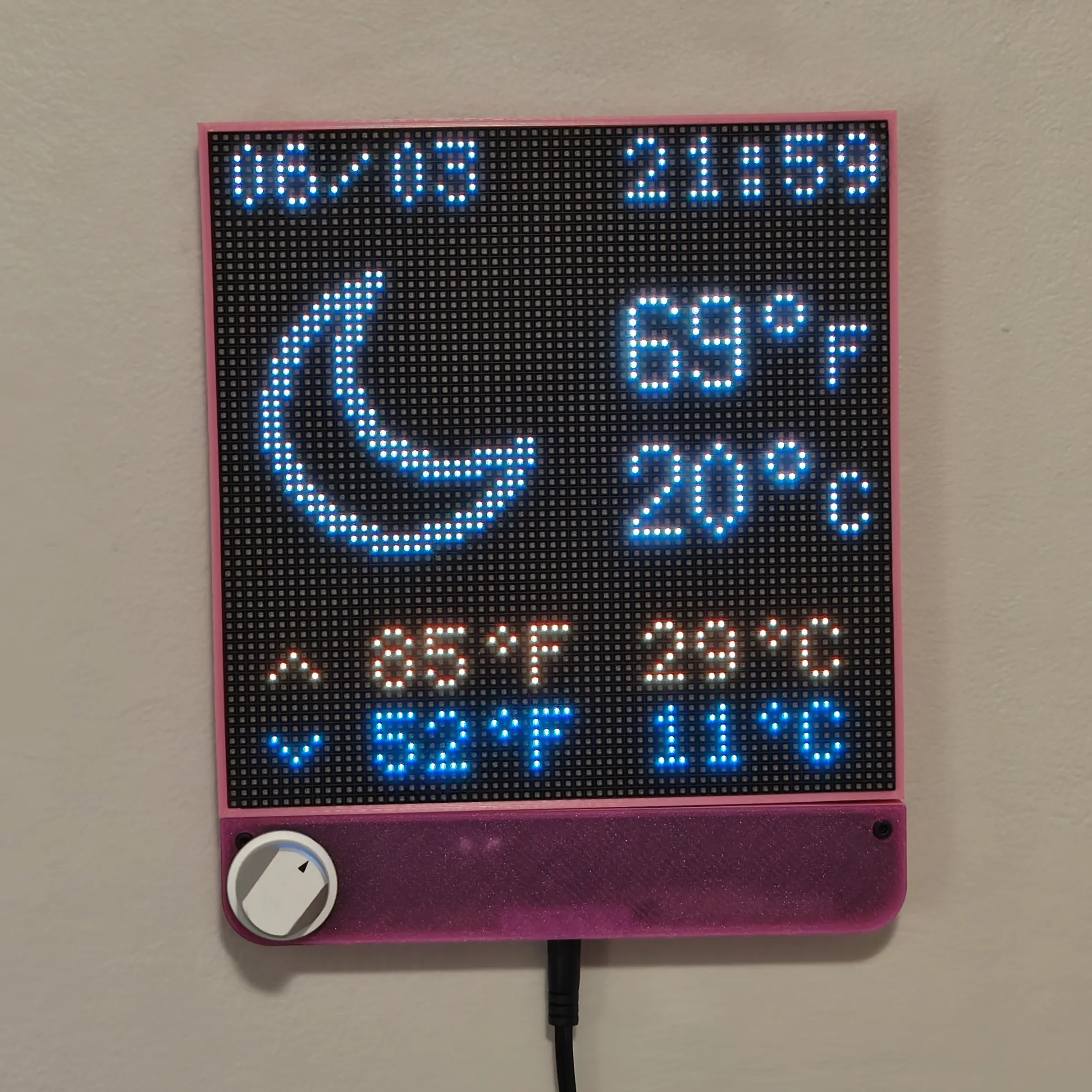
Even though the aesthetics are a bit compromised, the functionality is infinitely better, and the button click is much more reliable and satisfying.
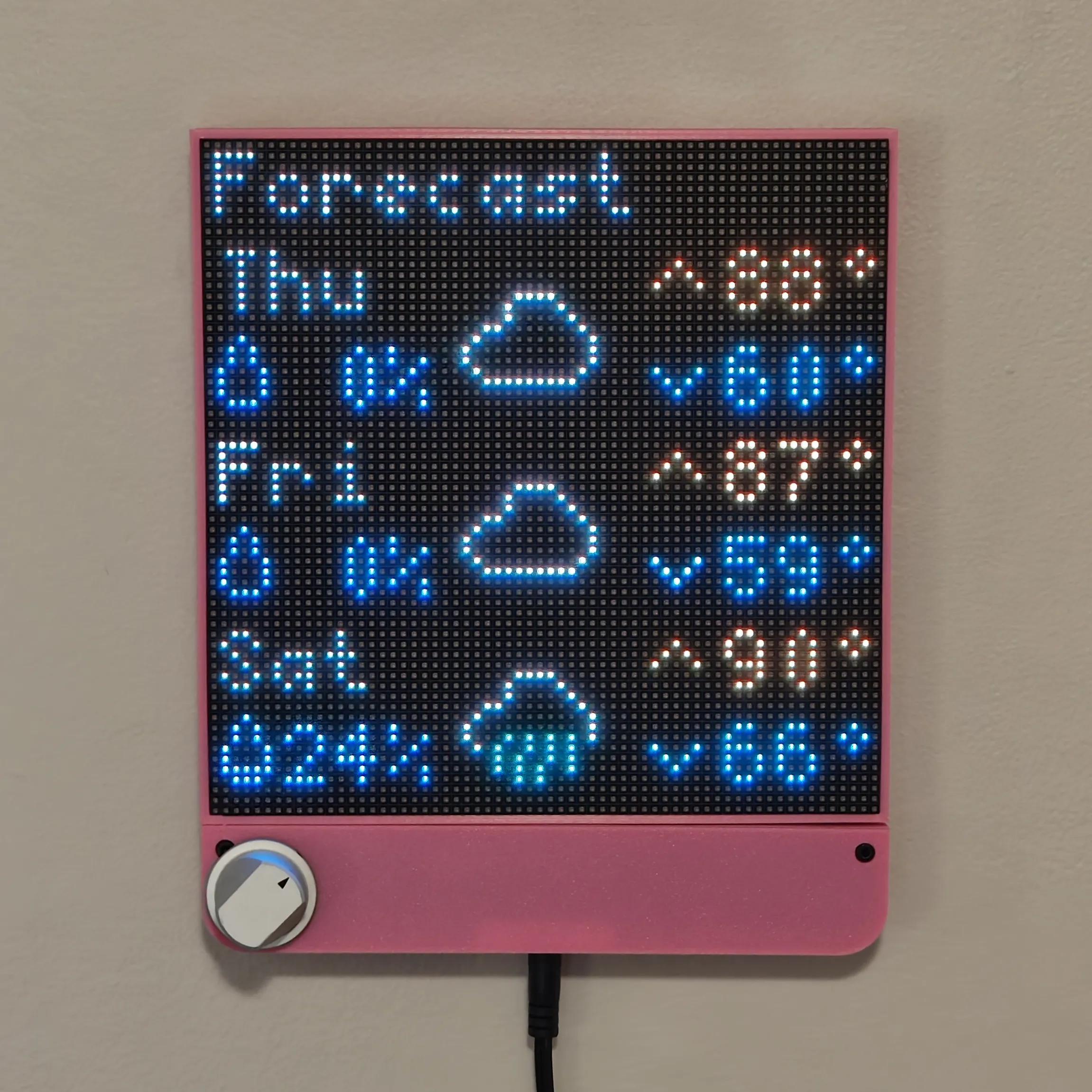
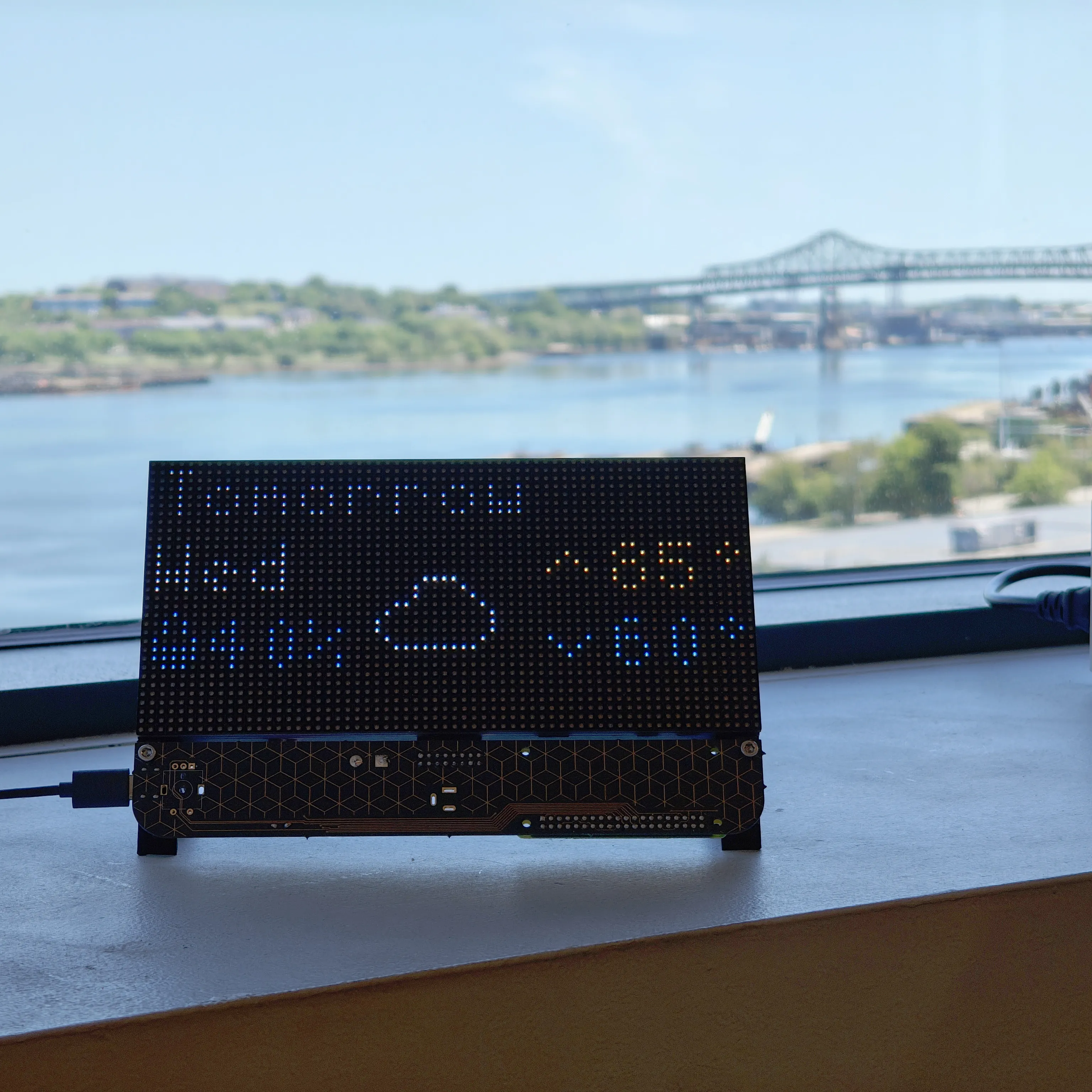
I also took the time to port the weather functionality from OpenWeatherMap to the Open-Meteo API, since they provided “high” and “low” temperatures and had the ability to request forecast data for free. I kept the current weather display the same, but added a screen to display the forecast of the next several days.
#Looking ahead
It is really nice to have the display automatically turn itself on in the morning and off at night.
Working on projects with others is something that I find really fun and rewarding that I don’t often get to do anymore since graduating college! It’s been very fun to get Ava’s help and input. I think her architectural decisions made the code for this project way cleaner and more maintainable than what it would have been had I written it alone.
I often feel like investing this level of effort into building devices and polished experiences that only a handful of people will ever use is a frivolous use of time. Continuing to iterate on this design, however, has started to show me that the act of creating something like this itself brings me a lot of joy! There’s also something special about working on something that I get to use every single day, and getting to enjoy the project I made over and over again.